Yes — video editing with VLC covers three real jobs: trimming a clip with the hidden record button, rotating footage with the Transform filter, and converting or baking those changes into a new file via Convert/Save.
Quick steps
VLC hides its editing tools in two places: the playback bar and the Media menu. Learn both and a single-clip fix takes minutes instead of a full project setup.
- Install VLC, then open
View > Advanced Controlsto reveal the record button under the seek bar. - Trim: play the clip, press Record just before your in-point, press it again at your out-point.
- Rotate:
Tools > Effects and Filters > Video Effects > Geometry > Transform, then pick an angle. - Convert:
Media > Convert/Save, choose a profile, tick the video transformation filter, and type a filename with its extension. - Verify: play the exported file start to finish, then switch the Transform filter back off.
You need the clip on a local drive, free disk space for a second copy, and about twenty minutes for a first pass through all five steps. Example: a four-minute clip takes roughly four minutes to trim, because recording runs at playback speed and cannot be sped up.
Keep the original file untouched until the export plays correctly. VLC gives you no undo history.
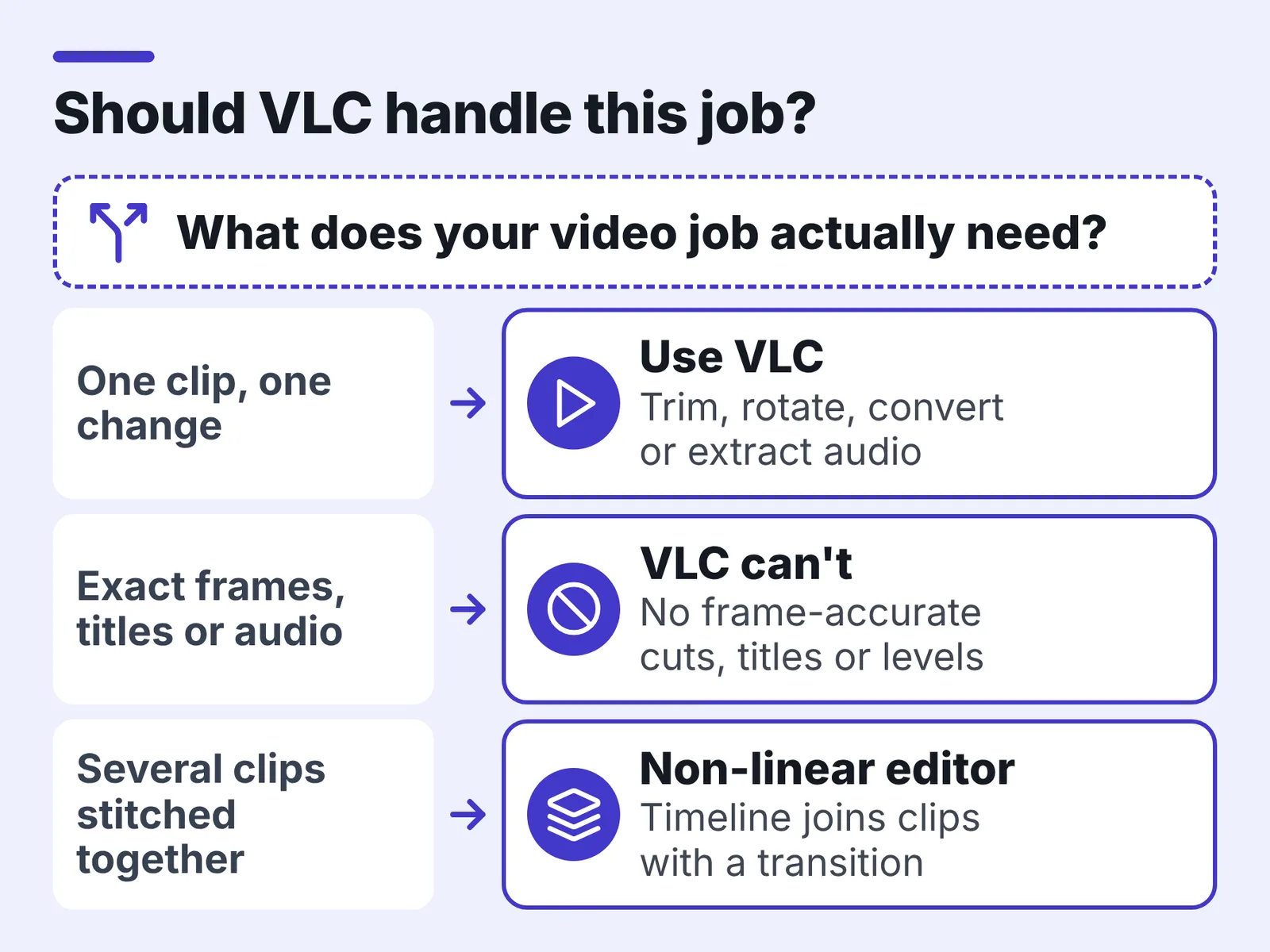
What VLC can and can’t do as a video editor
VLC is a player with a transcoder bolted on, not a timeline. That shapes everything below.
What it handles well:
- Trimming one continuous section out of one clip
- Rotating or flipping footage shot sideways on a phone
- Converting a file to MP4, WebM, TS, Ogg or an audio-only format
- Extracting the audio track from a video
- Grabbing still frames with the snapshot button
What it cannot do:
- Join two clips on a timeline with a transition
- Cut on an exact frame with reliable in/out points
- Add titles, captions you can reposition, keyframed motion or colour grading
- Adjust audio levels, fades or ducking
- Re-open a project later and change your mind
PCWorld reported that VideoLAN announced at CES in January 2025 that VLC had passed 6 billion downloads, which explains why it is already installed when you need a quick fix. VideoLAN’s official documentation says VLC offers two ways to transcode a file: through the graphical interface or through the command line. If your job involves several clips stitched together, read up on what non-linear editing software actually does differently before forcing it through VLC.
Step 1 — Install the current VLC build and switch on the advanced controls
Time: 5 minutes. You need: an internet connection and permission to install software on the machine.
The current stable VLC media player release offered on VideoLAN’s official download page is version 3.0.24, a 43 MB download for Windows. Download it from videolan.org rather than a download portal, which may wrap the installer in extra offers.
Older builds matter here because filter behaviour changed across the 3.0 branch. VideoLAN states that more than 150 bugs have been fixed since the original VLC 3.0.0 release. VLC 3.0.21, published in June 2024, was the 22nd update to VLC’s 3.0 branch, so a copy you installed years ago is several maintenance releases behind.
Open VLC after installing and go to View > Advanced Controls on Windows and Linux, or View > Advanced Controls in the menu bar on macOS. A second row of buttons appears under the transport bar: record, snapshot, loop A-B, and frame-by-frame.
The record button is the circle on the left. Without this row switched on, there is no way to trim a clip in the interface at all, which is why most people conclude VLC cannot cut video.
Check one more setting while you are here. Under Tools > Preferences > Input/Codecs, the Record directory field tells you where trimmed files will land.
Step 2 — Trim a clip using VLC’s record button
Time: the real-time length of the section you want, plus two minutes. You need: advanced controls visible and a known in-point.
Open the clip, then drag the seek bar to a couple of seconds before your in-point. Press play, and press the record circle the moment you want the new file to begin. Press it again at your out-point.
VLC writes the result to your Videos folder on Windows, Movies on macOS, or your home directory on Linux, named vlc-record- plus a date and time stamp. Nothing on screen says "recording" beyond the button changing state, so watch it.
Use the frame-by-frame button to park the playhead precisely before you start. Recording copies the stream rather than re-encoding it, so quality is preserved, but the cut usually snaps to the nearest keyframe ahead of your click. Expect the first and last half-second to be looser than you intended.
Trim generously and trim once. Recording a recording compounds the keyframe drift and the second pass gains you nothing.
Step 3 — Rotate or flip footage with the Transform filter
Time: 2 minutes. You need: the clip open and playing so you can see the preview change.
Go to Tools > Effects and Filters, open the Video Effects tab, then the Geometry sub-tab, and tick Transform. According to Wondershare’s Filmora guide, VLC’s Transform filter offers preset clockwise rotations of 90, 180 and 270 degrees, plus an arbitrary-angle option.
The dropdown also carries horizontal and vertical flip, plus transpose and anti-transpose, which combine a rotation with a mirror. Pick the preset first and only reach for the Rotate slider if the horizon is genuinely crooked, since an arbitrary angle leaves blank wedges in the corners.
Watch the player window as you choose. A phone clip that was recorded sideways usually needs 90 or 270, and the only way to know which is to look.
This filter changes playback only. Close VLC and the file on disk is exactly as it was, which is useful while you experiment and frustrating if you stop here. Baking it in is Step 4. If you also need to reframe the edges rather than turn the frame, the separate guide to cropping video on Windows, Mac and phones covers tools that handle it more cleanly than VLC’s crop filter.
Step 4 — Bake the rotation in and convert formats with Convert/Save
Time: 5 minutes of setup, plus encode time. You need: the Transform filter still ticked and free disk space.
The documented VLC conversion workflow starts from the Media menu’s Convert/Save command, which opens the Open media dialog, according to the VLC user documentation. Add your trimmed file there, then press the Convert/Save button at the bottom.
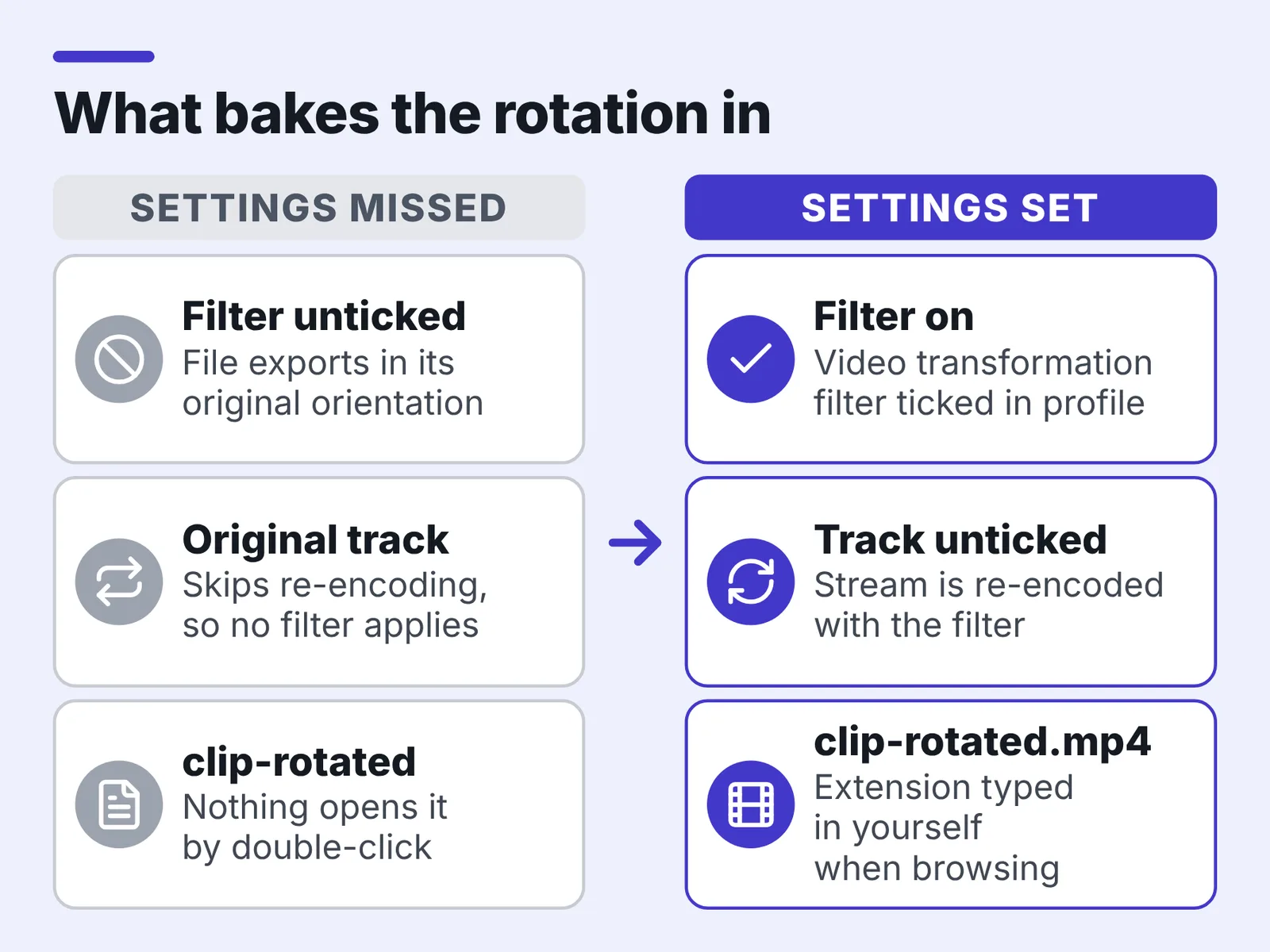
In the Convert window, pick a profile such as Video – H.264 + MP3 (MP4). Click the wrench icon to edit it, open the Video codec tab, then the Filters sub-tab, and tick Video transformation filter. Save the profile.
That checkbox is the step people miss. Without it, the exported file comes out in its original orientation no matter what the player showed you.
Set the destination with the Browse button and type the extension yourself — clip-rotated.mp4, not clip-rotated. VLC will happily write an extensionless file that nothing can open by double-click.
Leave Keep original video track unticked. It skips re-encoding, and a stream that is never re-encoded cannot have a filter applied to it.
Press Start. The seek bar moves through the file as it encodes, and the player shows no picture.
Step 5 — Check the exported file and clean up your filter settings
Time: 3 minutes. You need: the exported file and the original side by side.
Open the new file in VLC and check four things: orientation, duration, audio sync at the end rather than the start, and whether both the first and last second survived the trim. Drift shows up late in a file, not early.
Compare file sizes too. A file that came out a fraction of the original’s size usually means the profile re-encoded at a low bitrate, and one that is a few kilobytes means the encode failed partway.
Go back to Tools > Effects and Filters > Video Effects > Geometry and untick Transform. Leaving it on means every video you play afterwards appears rotated, and the next file you convert inherits the filter silently.
Press Save in that dialog so the cleared setting sticks between sessions. Some builds otherwise restore the filter on relaunch.
Keep the original until you have watched the export in full. Habits like this one sit alongside the other practical editing habits that make output look professional.
Pre-export checklist: what to confirm before you click Start
Run through this before pressing Start in the Convert window. Each line maps to a failure that is only visible after the encode finishes.
- ☐ Destination filename includes an extension such as
.mp4or.webm - ☐ Destination is not the same path as the source file
- ☐ Profile’s Filters sub-tab has Video transformation filter ticked, if you rotated
- ☐ Keep original video track is unticked
- ☐ Audio codec in the profile matches what your target platform accepts
- ☐ Enough free space for a second full copy of the file
- ☐ Laptop on mains power, since a long encode will drain a battery
The VideoLAN wiki warns that transcoding in VLC writes a new file alongside the original, so you need spare disk space and a reasonably fast computer. Encode speed depends mostly on the CPU here, because VLC’s GUI profiles default to software encoding rather than the hardware paths that a modern GPU built for video work would use.
Write down the profile settings that worked. VLC does not log what you exported.
Common mistakes when editing video in VLC (and how to avoid them)
The expensive one: rotating in Effects and Filters, then converting without the filter checkbox. The preview looks right, the export looks wrong, and the only fix is a second full encode. Tick Video transformation filter in the profile’s Filters sub-tab every time you rotate.
Overwriting the source. Pointing the destination at the input path can truncate the original to nothing. Always add a suffix such as -rotated.
Expecting a frame-exact cut. Record-based trimming lands near a keyframe, so leave a buffer at both ends rather than clicking on the exact frame.
Forgetting the filter is global. An unticked-and-unsaved Transform filter rotates the next ten videos you play.
Treating VLC as a project tool. There is no save state, no undo stack and no second track. Multi-clip work belongs in an editor built for it, as the workflow for editing YouTube videos lays out.
Encoding over a network drive. Write locally, then copy. A dropped connection mid-encode leaves an unplayable stub.
Frequently asked questions
Can VLC cut a video without losing quality?
Mostly, yes. The record button copies the existing stream rather than re-encoding it, so picture quality is preserved, but the cut snaps to a nearby keyframe instead of the exact frame you clicked, so leave a buffer of a second at each end.
Where does VLC save the file after you press record?
Windows sends it to your Videos library, macOS to Movies and Linux to your home directory, with a name beginning vlc-record plus a date and time stamp. You can change the path under Tools > Preferences > Input/Codecs in the Record directory field.
Why does my rotated video export unrotated?
The Transform filter in Effects and Filters only affects playback. To bake the rotation into a file, open the profile in the Convert window, go to the Video codec tab, open the Filters sub-tab and tick Video transformation filter before starting the export.
What formats can VLC convert between?
VideoLAN’s official documentation says VLC offers two ways to transcode a file: through the graphical interface or through the command line. The built-in GUI profiles cover MP4 with H.264, WebM, TS, Ogg, and audio-only targets such as MP3 and FLAC.
Do I need a fast computer to convert video in VLC?
It helps. The VideoLAN wiki warns that transcoding in VLC writes a new file alongside the original, so you need spare disk space and a reasonably fast computer, and the stock GUI profiles encode in software rather than on the graphics card.
Sources
- Official download of VLC media player, the best Open Source player – VideoLAN
- News – VideoLAN
- VLC celebrates 6 billion downloads with new AI subtitles feature – PCWorld
- Documentation:Streaming HowTo New – VideoLAN Wiki
- Transcode – VideoLAN Wiki
- Tips & Tricks — VLC User Documentation 1.0.0 documentation
- How to Rotate A Video on VLC Media Player – Filmora (Wondershare)
Written with AI assistance and fact-checked against the sources cited above before the Video Editor Editorial Team published it.