Trim and screen-record for free in QuickTime Player, fix single clips in Photos, then cut the full project in iMovie. Install DaVinci Resolve free when you need color grading, multicam or finer audio control.
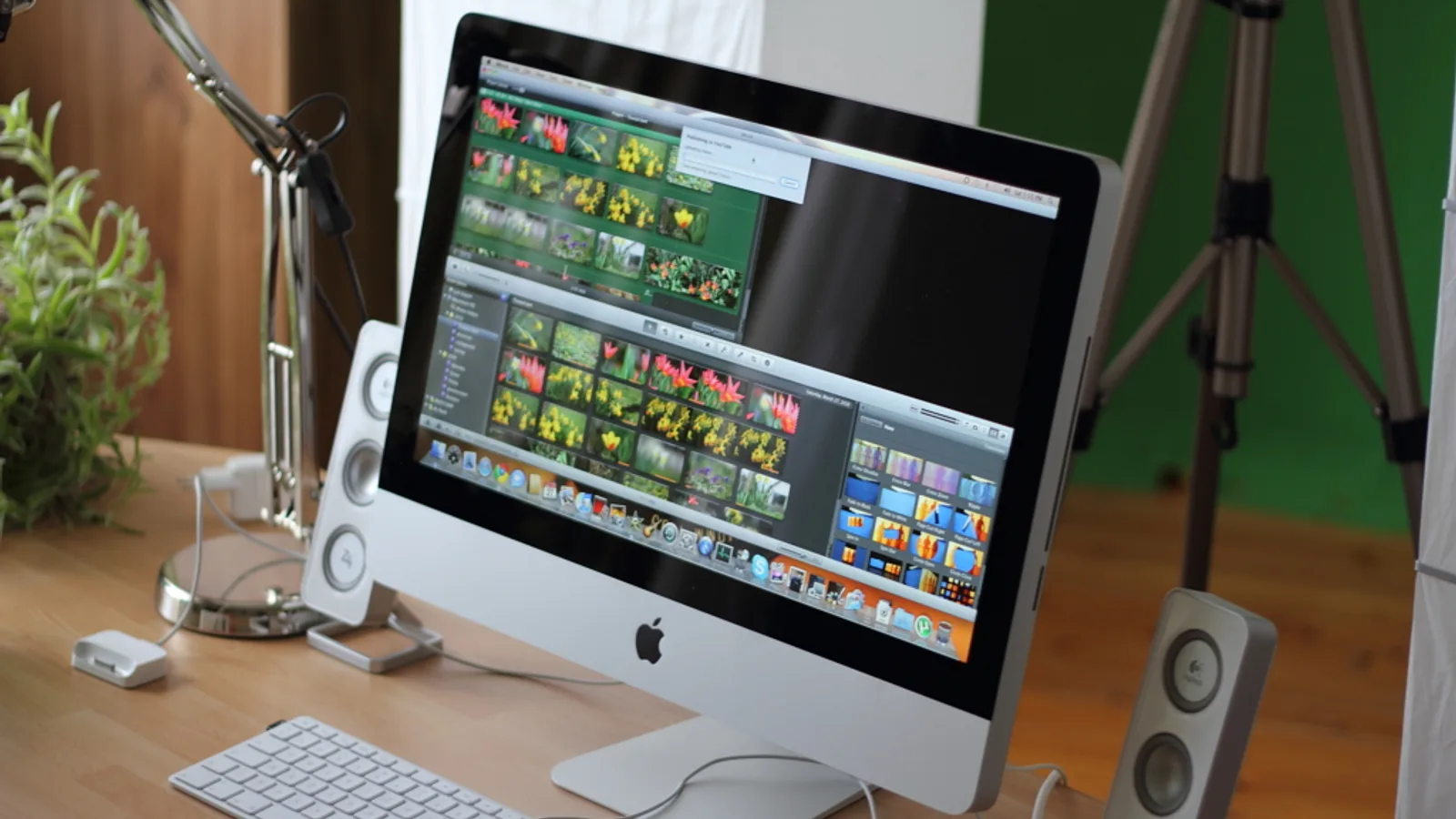
Editing video on a Mac: what’s already installed, and what it costs to go further
Open Launchpad on a recent Mac and the editing kit is already there. QuickTime Player trims clips and records your screen. Photos cleans up a single video. iMovie hands you a real timeline with titles, music and transitions, for nothing.
Paid software earns its price in narrow situations: log footage from a mirrorless camera, multicam interviews, heavy color work, or client deadlines where render time decides your evening.
Apple sells Final Cut Pro on the Mac App Store as a Mac-only app for a one-time price of $299.99. Apple also offers Apple Creator Studio, a bundle that includes Final Cut Pro, as a subscription at $12.99 per month or $129 per year.
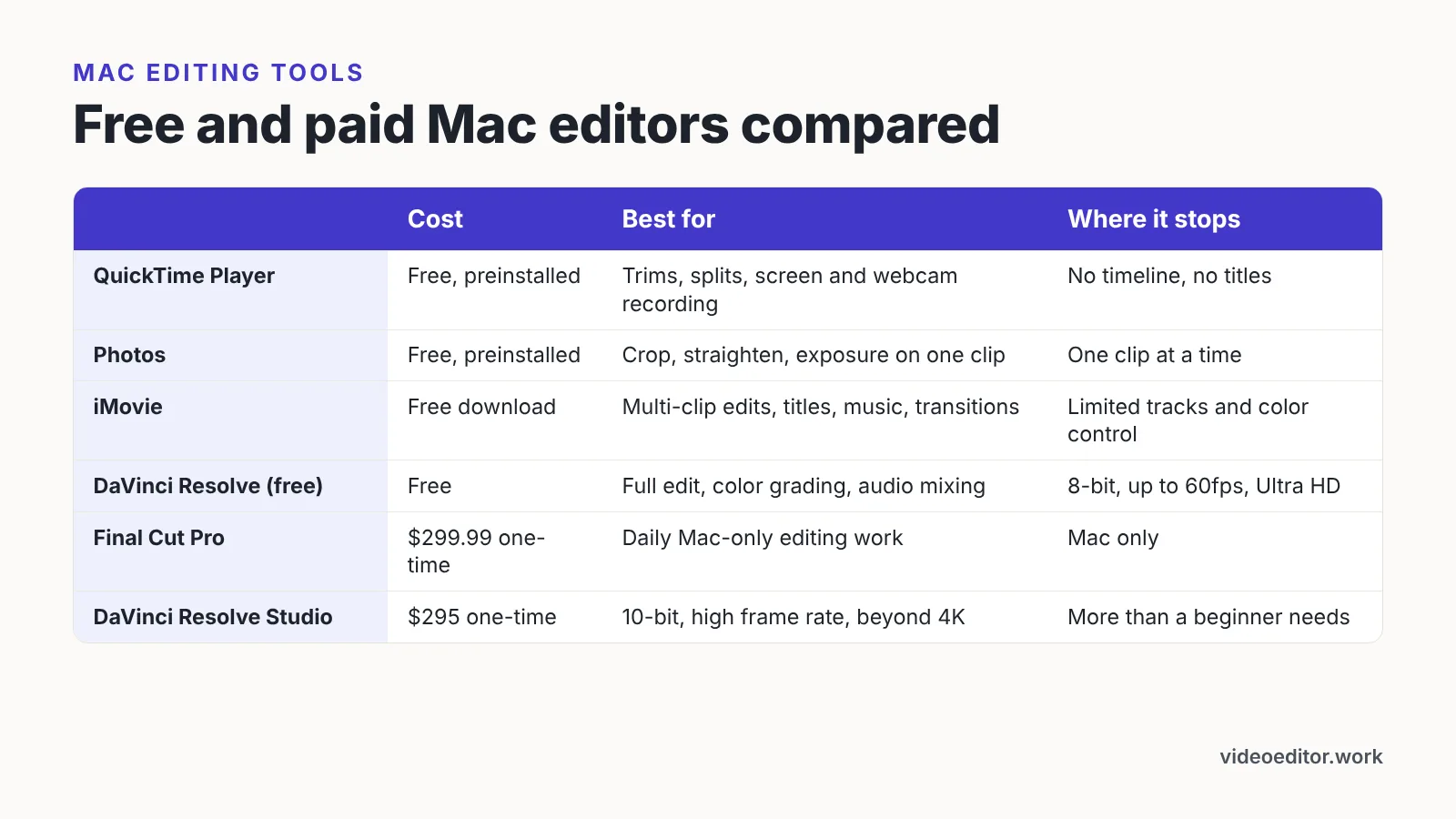
| Tool | Cost | Best for | Where it stops |
|---|---|---|---|
| QuickTime Player | Free, preinstalled | Trims, splits, screen and webcam recording | No timeline, no titles |
| Photos | Free, preinstalled | Crop, straighten, exposure on one clip | One clip at a time |
| iMovie | Free download | Multi-clip edits, titles, music, transitions | Limited tracks and color control |
| DaVinci Resolve (free) | Free | Full edit, color grading, audio mixing | 8-bit formats, up to 60fps, up to Ultra HD |
| Final Cut Pro | $299.99 one-time (Apple) | Daily Mac-only editing work | Mac only |
| DaVinci Resolve Studio | $295 one-time (Blackmagic Design) | 10-bit, high frame rate, beyond 4K | More than a beginner project needs |
Start free, always. Buy software only after a free tool has blocked the same job twice — a format it refuses, a grade it can’t hold, an export that takes all night.
Step 1 — Import, organize and back up your footage
Time: 20–40 minutes. You need: a card reader or USB-C cable, one external SSD, and a folder naming habit you’ll actually keep.
Copy the entire card to your Mac before you touch an editing app. Never cut directly off an SD card, because a loose cable mid-edit means offline clips and a rebuilt timeline.
Make one project folder and four subfolders inside it: Footage, Audio, Graphics, Exports. Drop the camera files in untouched, with original filenames. Renaming later breaks the link between your timeline and the media.
Storage planning matters more on a Mac than people expect, since internal SSDs are soldered and small on base models. Final Cut Pro’s Mac App Store listing shows a download size of 6.4 GB, according to Apple, so check your free space before you install it next to a week of 4K clips.
Keep two copies of every shoot: one on your working SSD, one on a second drive or Time Machine backup. Do it the same day you shoot. Footage you can re-edit is worth more than a tidy desktop.
Step 2 — Make quick trims and screen recordings for free in QuickTime Player and Photos
Time: 5–15 minutes per clip. You need: QuickTime Player and Photos, both preinstalled.
Some jobs don’t need a timeline. A talking-head clip with ten dead seconds at the front is a QuickTime job, finished before iMovie would even open.
Open the file, choose Edit then Trim, drag the yellow handles to the keeper section, and click Trim. Use Split Clip to cut the middle out of a take, delete the bad chunk, then export with File, Export As and pick 1080p or 4K.
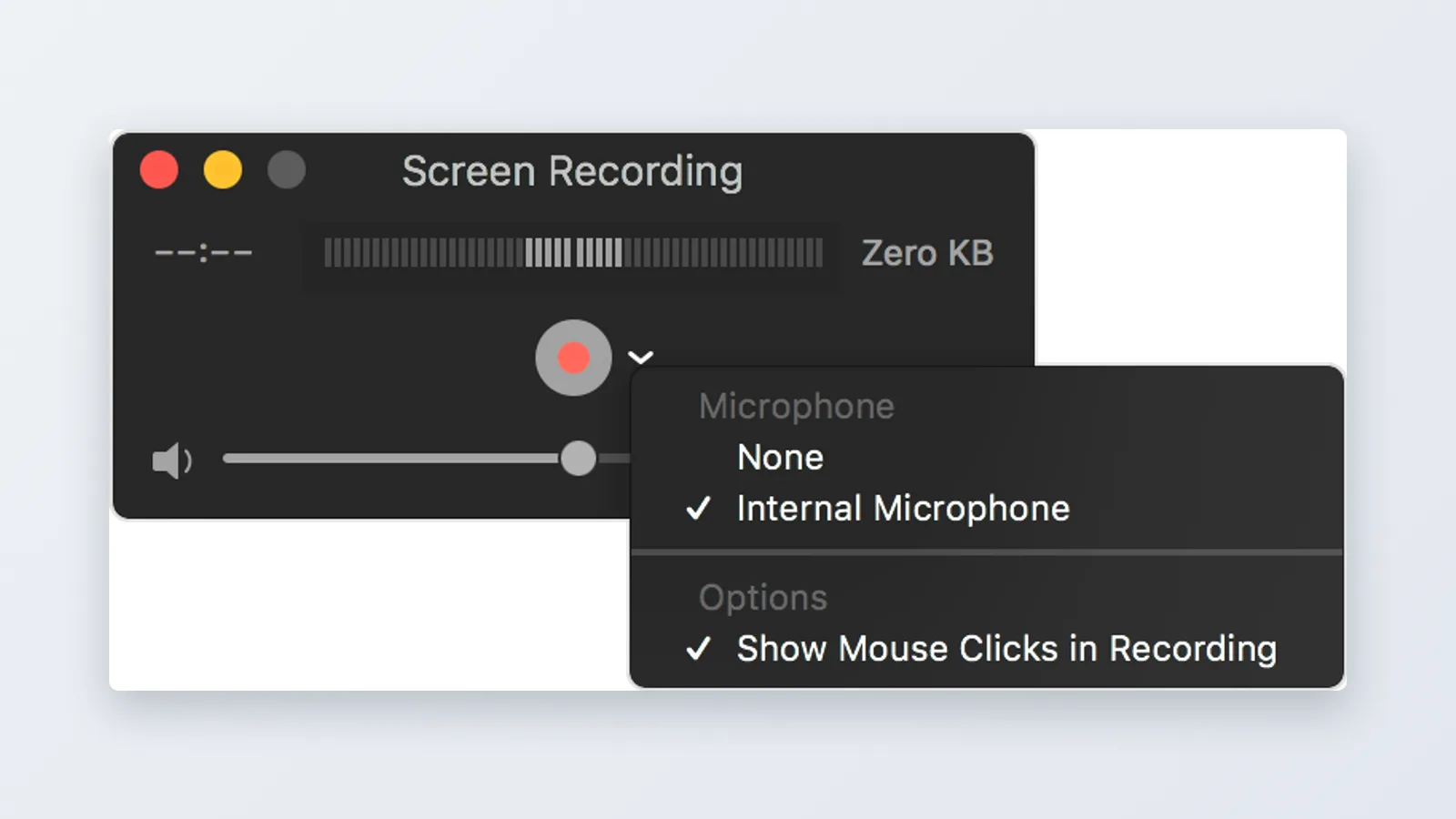
Screen recordings start in the same app. File, New Screen Recording lets you grab the full display or a region, and you can select your microphone from the options menu so narration lands in the same file. New Movie Recording does the same thing with your webcam.
Photos handles single-clip repair: crop, straighten, exposure, white balance, auto-enhance, and muting bad audio. Every change is non-destructive, so Revert to Original always works.
Neither app gives you titles, multiple tracks or transitions. The moment you need two clips to talk to each other, move on.
Step 3 — Build the full edit in iMovie: cuts, titles, audio and transitions
Time: 45–90 minutes for a five-minute video. You need: iMovie from the App Store and your organized footage folder.
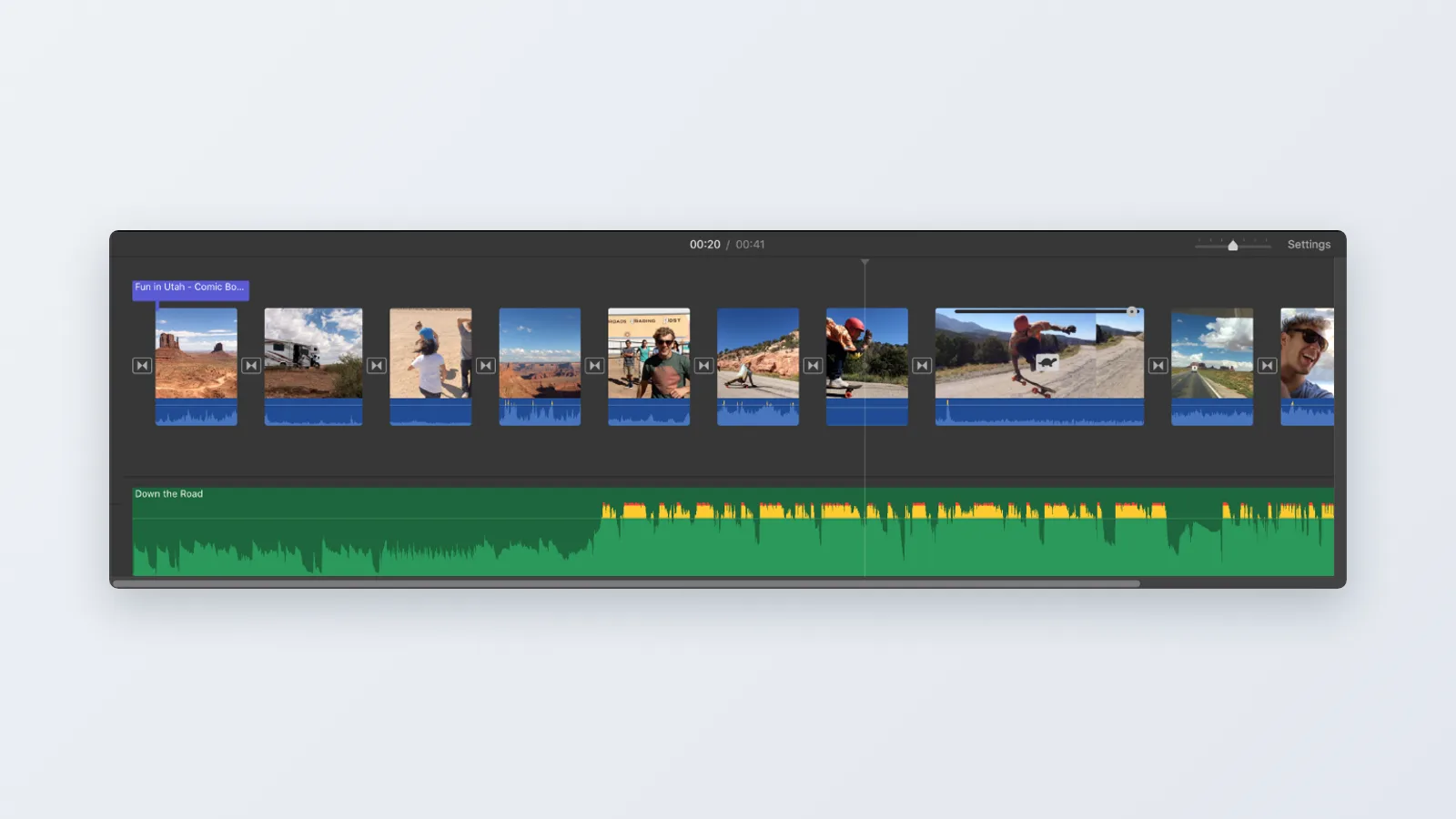
Create a new Movie project, then import from your Footage folder rather than dragging from the card. Lay clips on the timeline in story order and resist fixing anything yet. A rough cut that runs long is still progress.
Press Command-B to split a clip at the playhead, delete the flubbed takes, and tighten the gaps between sentences. Most beginner videos improve by cutting a third of their length, not by adding effects.
Detach audio with Option-Command-B when you want music and voice on separate strips. Lower the music clip to sit under speech, use the fade handles at each end, and check the volume curve against the loudest line of dialogue, not the quietest.
Titles go on last. Pick one clean style, use it for every lower third, and keep text on screen long enough to read twice.
Transitions are the giveaway of a first edit. A straight cut works almost everywhere; save the cross dissolve for a real jump in time or place.
Step 4 — Go further for free with DaVinci Resolve, and when Final Cut Pro is worth paying for
Time: 2–3 hours to get comfortable with the page layout. You need: an external SSD for cache and a Mac with room for the install.
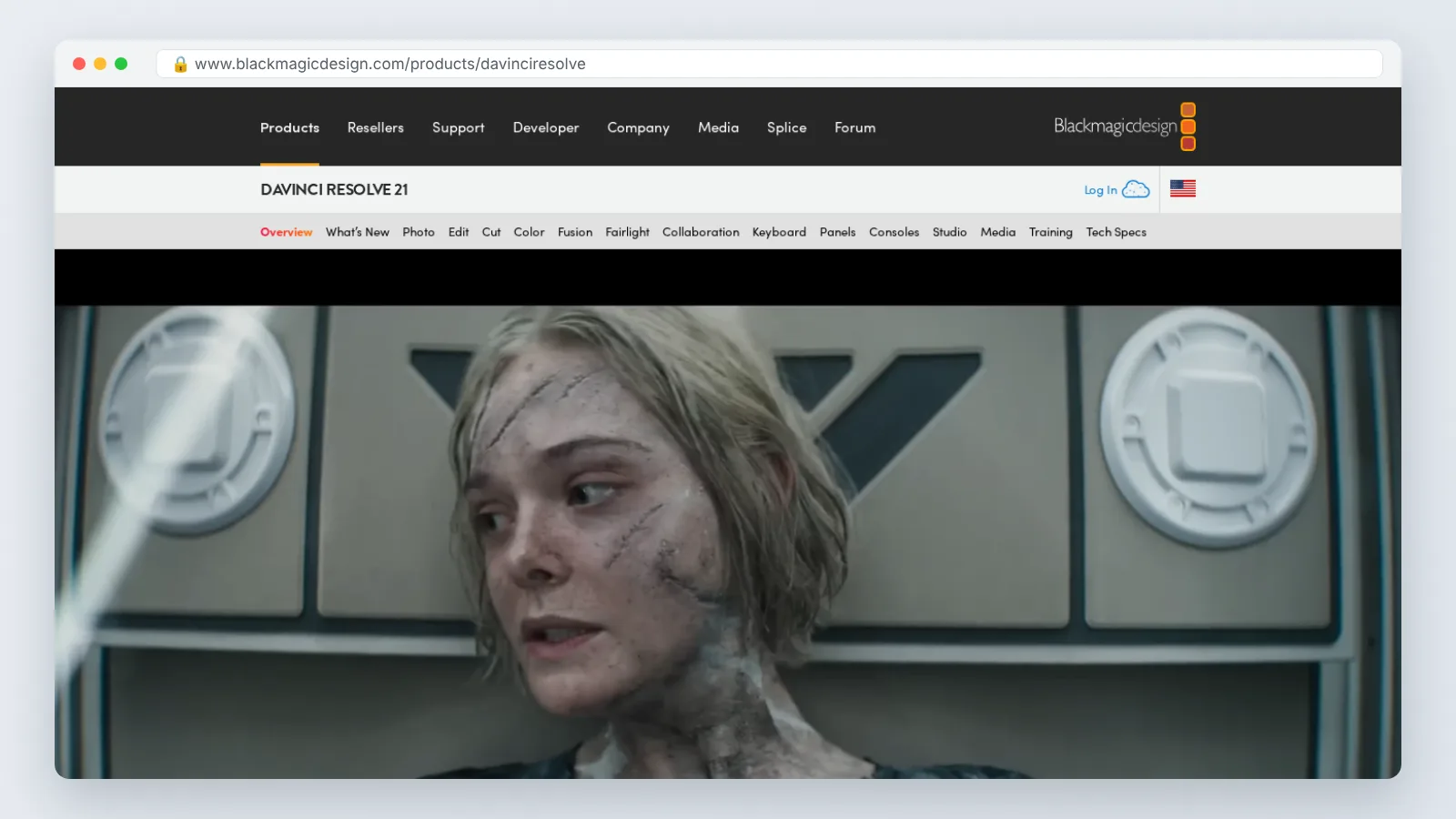
Resolve splits work into pages along the bottom: Media, Cut, Edit, Fusion, Color, Fairlight and Deliver. The Cut page is built for fast turnarounds, the Edit page for control, the Color page for node-based grading with real scopes.
Blackmagic Design states that the free version of DaVinci Resolve works with virtually all 8-bit video formats at up to 60fps in resolutions as high as Ultra HD 3840 x 2160, which covers most beginner and creator projects on a Mac.
For paid upgrades, Blackmagic Design prices DaVinci Resolve Studio as a one-time purchase of $295 on its site. MacRumors reports that on the Mac, the Apple Creator Studio subscription covers Final Cut Pro, Logic Pro, Pixelmator Pro, Motion, Compressor and MainStage for $12.99 per month, with a $129 per year option.
Choose by workflow, not loyalty. Final Cut Pro suits editors who work on a Mac daily and want an app built for macOS alone; its timeline behaves differently from track-based editors, and that difference is why people either stay or bounce. Resolve suits anyone who grades heavily or collaborates with colorists.
Step 5 — Export, compress and share your finished video
Time: 10–20 minutes including upload. You need: free disk space roughly double your project size.
Match your export frame rate to your source. Footage shot at 24fps exported at 30fps gets judder that no amount of sharpening hides.
In iMovie, use File, Share, File, then set Resolution to 1080p or 4K and Quality to High. In Resolve’s Deliver page, start from a YouTube preset, keep the codec at H.264 for compatibility, and only switch to H.265 when file size is the problem.
Blackmagic Design states that upgrading to DaVinci Resolve Studio adds support for 10-bit video up to 120 frames per second and resolutions beyond 4K, along with the Neural Engine and extra Resolve FX — relevant if your delivery spec exceeds what the free version handles.
As a working target, mix dialogue so the overall level sits around -14 LUFS integrated with peaks under -1 dBTP. Platforms normalize loudness anyway, and a quiet mix gets turned up along with its hiss.
Watch the finished file on your phone before uploading. Small screen, bad speakers, no headphones — that’s how most of your audience will see it.
Pre-export checklist for Mac video editors
Run this list before you hit Share. It takes five minutes and saves a re-upload.
- Timeline frame rate matches the source footage
- No black frames or gaps between clips, start to finish
- Audio levels consistent across every speaking clip
- Music ducked under dialogue, with fades at both ends
- All titles spell-checked and on screen long enough to read
- Nothing crosses into the safe-area edges on a phone
- Color and exposure consistent between shots in the same scene
- Any stabilized clip rechecked for warped edges
- Logos and graphics sized for mobile, not for your 27-inch display
- Export resolution set deliberately, not left at a leftover setting
- Free disk space confirmed before the render starts
- Project folder backed up to a second drive after export
Save the checklist as a text file inside your project template folder. Reuse it on every edit until the steps become reflex.
Common mistakes beginners make when editing video on a Mac
The failure that costs the most time is editing off the SD card or a nearly full internal drive. The card gets ejected, the drive hits zero free space mid-render, and your timeline fills with red offline clips. Avoid it by copying every card to an external SSD first and keeping a healthy buffer of free space on the system drive before you start.
Second mistake: deleting camera files after importing into iMovie. The library may hold its own copy, but once you move the project or switch apps, those originals are the only version you can regrade.
Third: stacking transitions. Three dissolves in thirty seconds reads as uncertainty, not style.
Fourth: judging audio on MacBook speakers. They flatter voices and hide room echo, so check on cheap earbuds too.
Fifth: grading before the cut is locked. Color work on clips you’ll delete is wasted effort, and it slows every playback in the meantime.
Frequently asked questions
Can I edit 4K video on a Mac for free?
Yes. Blackmagic Design states that the free version of DaVinci Resolve works with virtually all 8-bit video formats at up to 60fps in resolutions as high as Ultra HD 3840 x 2160, which covers typical 4K phone and mirrorless footage. iMovie also handles 4K projects on modern Macs.
Is iMovie good enough for a YouTube channel?
For talking-head videos, vlogs, tutorials and product demos, yes. iMovie gives you cuts, titles, music ducking, transitions and 4K export at no cost. You outgrow it when you need multicam, node-based color grading, more than a couple of audio tracks, or precise keyframe control over effects.
Should I buy Final Cut Pro outright or subscribe to Apple Creator Studio?
Apple sells Final Cut Pro on the Mac App Store for a one-time price of $299.99, while Apple Creator Studio including Final Cut Pro costs $12.99 per month or $129 per year. Variety reports that college students and educators can get Apple Creator Studio at a discounted $2.99 per month or $29.99 per year.
How much storage do I need to edit video on a Mac?
Plan for the app plus the footage plus the exports. Final Cut Pro’s Mac App Store listing shows a download size of 6.4 GB, according to Apple, and raw 4K clips add up far faster than that. An external SSD for media keeps your internal drive breathing.
What’s the difference between DaVinci Resolve free and Studio?
Blackmagic Design states that Resolve Studio adds support for 10-bit video up to 120 frames per second and resolutions beyond 4K, plus the Neural Engine and extra Resolve FX. Blackmagic Design prices Resolve Studio as a one-time purchase of $295 on its site.
Sources
- DaVinci Resolve — Blackmagic Design
- DaVinci Resolve Studio — Blackmagic Design
- Final Cut Pro on the Mac App Store — Apple
- How to subscribe to Apple Creator Studio — Apple
- Apple to Launch ‘Creator Studio’ Bundle Including Final Cut Pro and Logic Pro, Priced at $13/Month — Variety
- Apple Creator Studio Hands-On: What You Get for $12.99 Per Month — MacRumors
Written with AI assistance and fact-checked against the sources cited above before the Video Editor Editorial Team published it.