To learn how to blur face in video, draw a mask around the head, drop a mosaic inside it, then let AI detection or mask tracking follow that head across every frame.

Quick steps
Blurring a face is two jobs stacked on top of each other. Hide the face, then keep it hidden while the head turns, tilts and walks out of frame.
- Count the faces and the cuts. One face in an unbroken shot takes minutes; six faces across a dozen cuts takes an afternoon.
- Pick the tool by deadline. YouTube Studio for an upload that is already live, DaVinci Resolve Magic Mask for AI-assisted tracking of an area you select, Premiere Pro for frame-level control.
- Mask the head, not the frame. Draw an ellipse slightly wider than the face, then feather the edge so it blends into the skin and hair.
- Apply mosaic inside the mask, then track that mask forward and backward across the full clip.
- Scrub frame by frame, keyframe the slips by hand, and export a new flattened file.
Each section below expands one of those five actions with the exact settings and the traps that decide whether the blur survives a sharp head turn. The blur effect is never the difficult part. The tracking is.
Why face blurring fails (and what "automatic" really means)
"Automatic" describes two separate abilities, and most tools only advertise one clearly. Detection means the software finds a face without you pointing at it. Tracking means it follows that face from frame to frame once it has been found.
YouTube Studio’s face blur scans an upload for faces, so detection is part of the job it does for you. DaVinci Resolve’s Magic Mask works the other way around: you select the area yourself with a stroke, and the AI keeps that selection tracked through the shot. Premiere Pro’s mask tracker is tracking only — you draw the shape, the software analyses the pixels underneath it and carries it along.
Four situations break trackers more than anything else: a fast head turn that hides the eye line, a hand or microphone crossing the face, a hard cut that the tracker reads as violent motion, and dim footage where contrast between skin and background collapses.
The second failure is cosmetic rather than technical. A soft Gaussian blur at a small radius leaves a face readable at full resolution and on a large screen, which defeats the point. Coarse mosaic blocks remove the detail instead of smearing it.
The third failure is where the blur lives. A platform-side blur protects the copy on that platform; it does nothing for the master file sitting on your drive.
Step 1 — Pick the right blur method for your footage and deadline
Time: about five minutes (our editorial estimate). What you need: the clip, plus a count of faces and cuts.
Watch the clip once and write down three numbers: how many faces need hiding, how many separate shots they appear in, and how long the longest continuous shot runs. Those three figures decide your method more than any software preference.
| Method | Best for | Main trade-off |
|---|---|---|
| YouTube Studio blur | A video already published on YouTube | The edit applies to the YouTube copy, not your master file |
| DaVinci Resolve Magic Mask | Long shots, crowds, partial occlusions | Requires the paid Studio edition |
| Premiere Pro mask + Mosaic | One or two faces, precise control | You redraw and retrack per face, per shot |
DaVinci Resolve 20 Studio, the paid edition that unlocks the AI Magic Mask tools, costs $295, according to PetaPixel. That price is the whole decision for a one-off job: for a single interview with one guest, a hand-drawn mask in an editor you already own is faster than buying a new license.
Pick the simplest method that survives the hardest shot in your timeline. If one shot has someone walking past camera at speed, build the whole sequence in the tool that can handle that shot, rather than switching tools halfway and mismatching blur styles.
Step 2 — Blur faces with AI tools (YouTube Studio face blur and DaVinci Resolve Magic Mask)
Time: 10–30 minutes per clip (our editorial estimate). What you need: a YouTube upload, or Resolve 20 Studio and the clip on a timeline.
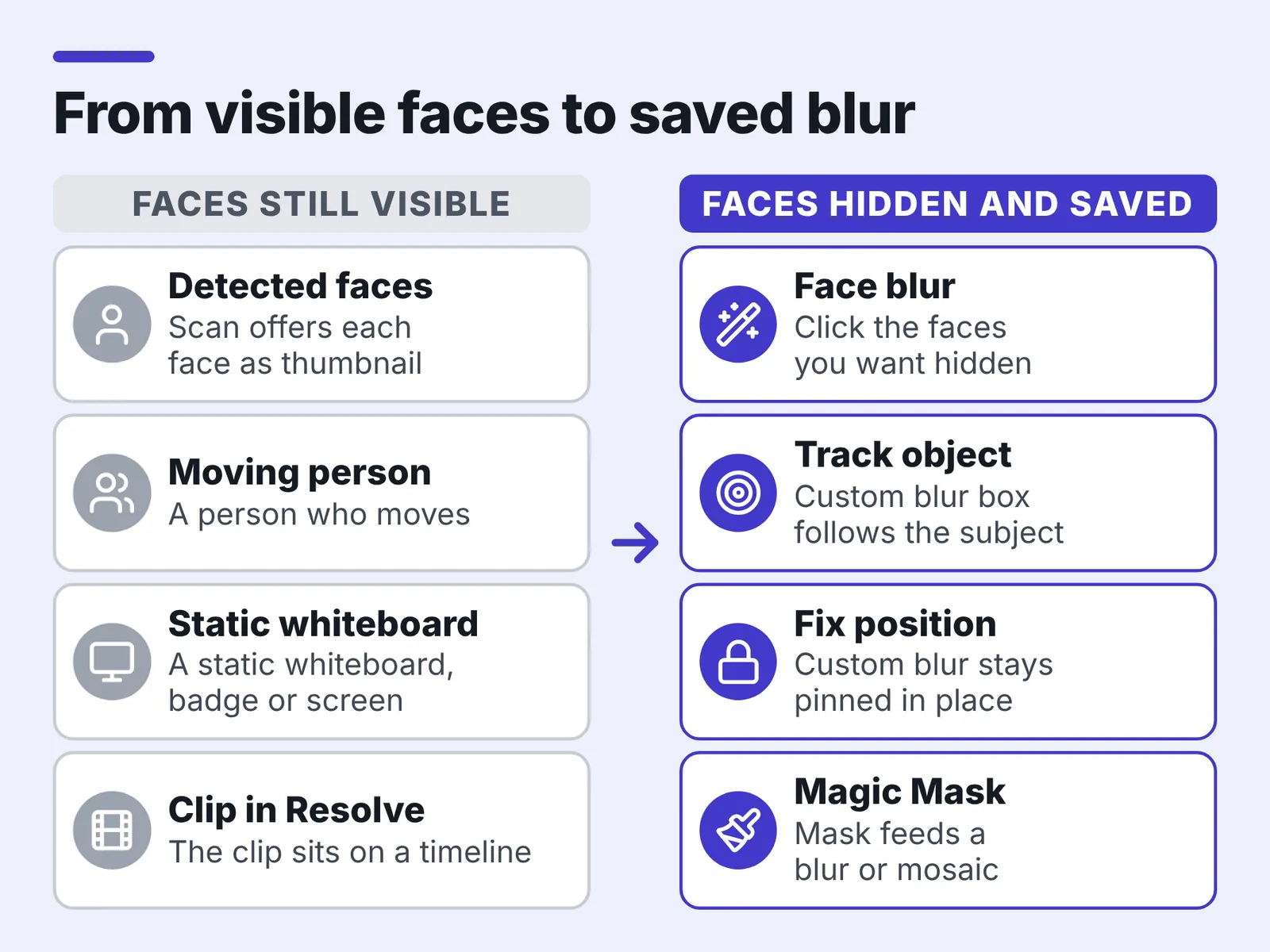
In YouTube Studio, open Content, select the video, click Editor, then Blur parts of your video. Face blur scans the upload and presents the faces it has found in the panel; pick the ones you want hidden and save.
Custom blur is the manual option in the same panel, and YouTube Help states that the custom blur box can follow a moving subject when you enable the Track object option, or stay pinned with Fix blur position. Use track for a person who moves and fix for a static whiteboard, badge or screen.
Two platform rules matter before you click save. YouTube Help notes that on unedited videos with over 100,000 views you may not be able to save changes in the Studio Editor, and that face blur is the one change you can still save on them. YouTube Help also states that since June 2025, blur edits saved in the Studio Editor can no longer be undone with the Revert to original feature.
Resolve’s route is different, and it is not detection. Blackmagic Design announced DaVinci Resolve 20, with over 100 new features, on Friday 4 April 2025 at NAB in Las Vegas, and Magic Mask is the tool you want on the Color page. Paint a stroke across the face to select that area, let the mask generate, then feed that mask into a node carrying a blur or mosaic. The AI’s job here is to keep your selected area tracked through the shot, not to find the face for you.
If the clip is destined for a channel, fold this into the rest of your YouTube editing workflow that holds retention rather than treating privacy as a last-minute patch.
Step 3 — Mask and motion-track a face manually in Premiere Pro
Time: 10–20 minutes per shot (our editorial estimate). What you need: Premiere Pro, the clip on a timeline, Effect Controls open.
Adobe documents mask tracking in Premiere Pro as the intended workflow for blurring faces on moving subjects, so this is not a workaround — it is the supported path. The order matters: effect first, mask second, track third.
- Drag the Mosaic effect onto the clip from the Effects panel.
- In Effect Controls, set the block values. Adobe’s own face-blur tutorial sets the Mosaic effect’s Horizontal Blocks and Vertical Blocks both to 120 to obscure a subject’s identity.
- Click the ellipse mask icon under Mosaic, then drag the mask over the face and resize the handles so it covers hairline to chin.
- Raise Mask Feather until the edge stops looking cut out, and nudge Mask Expansion a few pixels so the blur overlaps the jaw.
- Park the playhead on the first frame where the face appears and press Track selected mask forward, which analyses from that frame to the end of the shot. Adobe’s tutorial states that clicking Track selected mask forward makes Premiere Pro optically analyse the shot so the mask follows the face.
That forward-only pass is the right button when the face is clean from the first frame. If your best view of the face sits mid-shot, use the bi-directional button described in Step 4 instead.
Let the analysis finish without scrubbing the timeline. The tracker reads the frames in sequence, and interrupting it mid-pass leaves a half-tracked mask that looks fine in the program monitor and wrong in the export.
Step 4 — Fix drift, occlusions and cuts so the blur never slips
Time: 5–15 minutes per shot (our editorial estimate). What you need: keyboard arrow keys and patience.
Tracking rarely survives a whole clip untouched, so plan a repair pass. Adobe’s documentation describes Premiere Pro’s bi-directional tracking button as analysing the whole clip from one click, going forward from the current frame first and then backward. Use that button in place of the forward-only track from Step 3 when the cleanest face is in the middle of the shot rather than at its start.
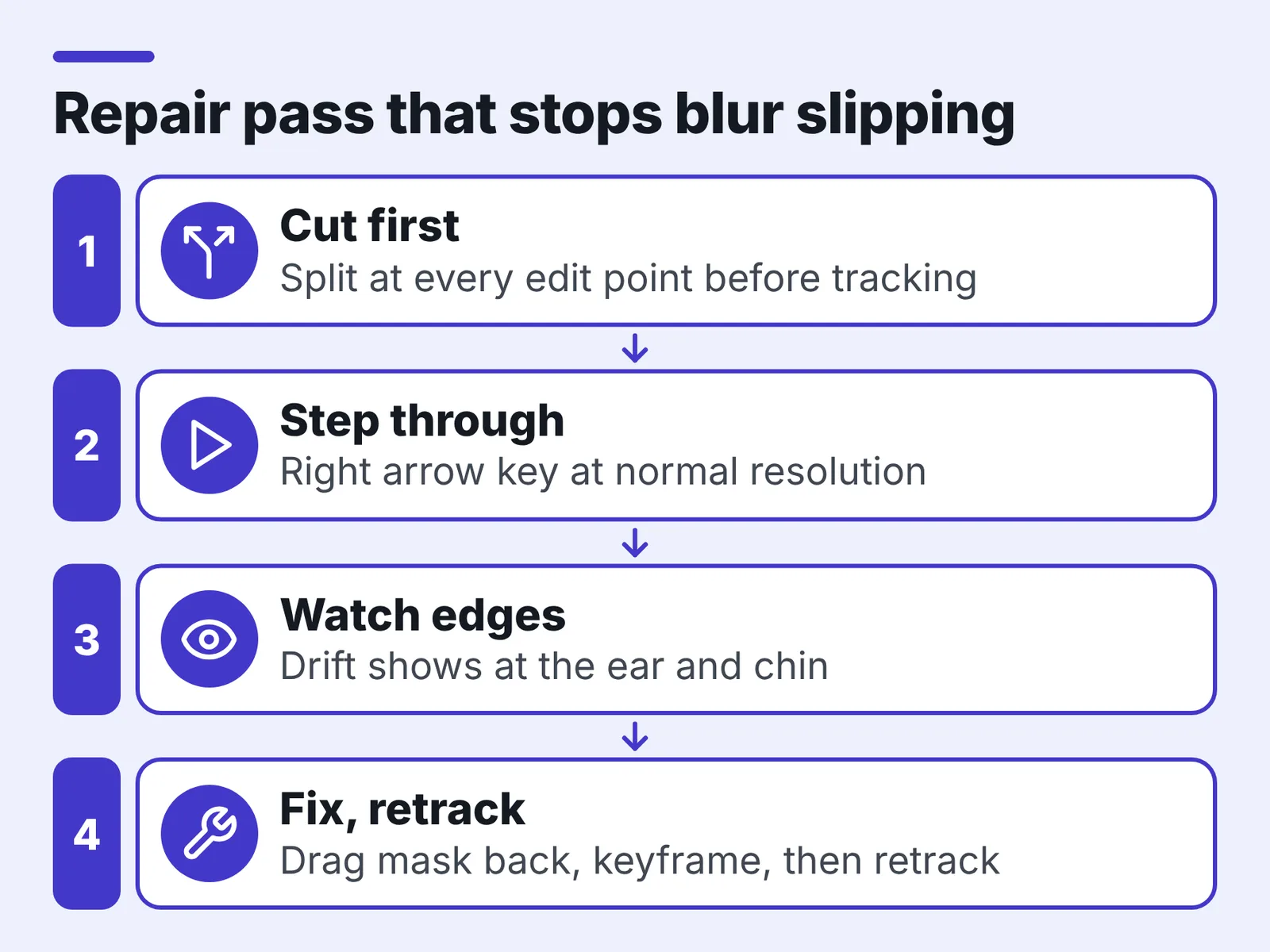
Step through the tracked range with the right arrow key at normal speed, not at quarter resolution. Watch the mask edge against the ear and chin, the two places drift shows up first. The moment the face peeks out, stop and drag the mask back into place to create a new keyframe, then retrack from there.
Occlusions are the other killer. Blackmagic says Magic Mask keeps tracking a selected area even when it is obstructed or the footage is low quality, which is the strongest argument for using Resolve on footage with hands, mics and passers-by crossing the frame.
Hard cuts need splitting, never tracking through. Cut the clip at every edit point and track each piece separately, because a tracker asked to follow a face across a camera change will chase whatever shape sits in the same pixels.
Similar discipline applies to covering graphics and lower thirds, and the same drift problem shows up in the techniques for removing text from video without artifacts.
Step 5 — Export so the blur is permanently baked into the file
Time: render time plus one full playback. What you need: disk space for a new master.
A blur that exists only as an effect parameter is not protection. Render a new flattened file, archive the project separately, and treat the rendered file as the only version you are allowed to send anywhere.
Export settings that keep a mosaic clean are the same ones that keep text clean: a reasonably high bitrate and the original frame size. Mosaic edges and heavy compression fight each other, and a low-bitrate H.264 will smear the blocks into mush that still reads as a face shape.
Watch the exported file end to end in a separate player. Playing it in your editor’s program monitor proves nothing, because the editor is showing you the effect, not the baked pixels. Faster renders mostly come down to hardware, and the comparison of NVIDIA GPUs worth buying for video editing is the right place to start if exports crawl.
If captions matter for the same deliverable, render them in the same pass using the guide to burning subtitles permanently into a video file, so there is one final master rather than three near-identical files.
Pre-export checklist: 8 things to confirm before you publish
Run this list against the rendered file, not the timeline. Eight checks, in order:
- Every face is covered on every frame — step through each tracked range at full resolution.
- The blur is coarse enough — pause on a close-up and confirm you cannot identify the person at 100% zoom.
- Cuts are split — no mask tracks across an edit point.
- Reflections are handled — mirrors, windows, glossy tables and car paint show faces too.
- Secondary identifiers are covered — name badges, tattoos, license plates, lanyards, screens in shot.
- The mask edge is feathered — no hard rectangle outline sliding over skin.
- Audio is reviewed — a blurred face with a full name spoken on the track is not anonymous.
- The master file is flattened — the deliverable contains baked pixels, not a live effect.
Check the frames around each cut point twice, since that is where trackers hand off badly. If someone leaves frame and returns, confirm the mask reattached rather than sitting on empty background.
Common mistakes when blurring faces in video
The failure that ruins most jobs is trusting the tracker and skipping the scrub. The mask follows a face for eleven seconds, slips for four frames during a laugh, and re-locks — the preview looks fine at playback speed and the face is fully readable in a freeze frame. Avoid it by stepping through the tracked range frame by frame once, every time, before you render.
Second mistake: blurring the face and forgetting the frame around it. A blurred head above a visible conference badge with a printed name protects nobody.
Third: using soft blur instead of mosaic because it looks more elegant. Elegance is not the brief here.
Fourth: exporting with the blur still as a live effect, then sending the project file to a client who opens it with effects disabled.
Privacy and consent rules differ by country, and in the United States they differ by state, so check what applies where you filmed and where you publish. This is general information, not legal advice.
Frequently asked questions
Can I blur a face in a YouTube video after it has been published?
Yes. Open YouTube Studio, go to Content, then Editor, then Blur parts of your video. YouTube Help notes that on unedited videos with over 100,000 views you may not be able to save changes in the Editor, while face blur remains the one change you can still save on them.
Can a YouTube blur edit be undone?
Not with Revert to original. YouTube Help states that since June 2025, blur edits saved in the Studio Editor can no longer be undone with the Revert to original feature, so review the blurred preview carefully before saving and keep an unblurred master file on your own drive.
What blur settings actually hide someone’s identity?
Use mosaic rather than soft blur, and make the blocks coarse. Adobe’s face-blur tutorial sets the Mosaic effect’s Horizontal Blocks and Vertical Blocks both to 120 to obscure a subject’s identity, which is a sensible starting point for a close-up head.
Do I need paid software to blur faces automatically?
Not always — YouTube Studio’s face blur is free for videos you host there. For offline files with AI masking, PetaPixel reports that DaVinci Resolve 20 Studio, the paid edition that unlocks the AI Magic Mask tools, costs $295.
How do I keep the blur locked on when someone walks in front of the face?
Split the clip at the occlusion or use a tool built for it. Blackmagic says Magic Mask keeps tracking a selected area even when it is obstructed or the footage is low quality, which beats hand-keyframing an ellipse through a passer-by.
Sources
- Blur your videos – YouTube Help
- Track masks in Premiere – Adobe Help Center
- Mask tracking tools in Premiere – Adobe Help Center
- Blur a face with masking and tracking – Adobe
- Blackmagic Design Announces DaVinci Resolve 20
- Blackmagic Design Announces DaVinci Resolve 20 (Business Wire)
- DaVinci Resolve 20 Delivers More Than 100 New Features – PetaPixel
Written with AI assistance and fact-checked against the sources cited above before the Video Editor Editorial Team published it.