The fastest way to learn how to extract subtitles from video: check for a soft text track with MediaInfo, pull it with FFmpeg, then OCR or re-transcribe anything burned into the picture.
Quick steps
Keep the original file on hand before you start. Re-encoded copies, screen recordings and platform downloads often drop subtitle streams entirely, which turns a two-minute job into a thirty-minute one.
- Check the container — open the file in MediaInfo or VLC and look for a stream labeled "Text" or "Subtitle".
- Pull soft tracks with FFmpeg —
ffmpeg -i input.mkv -map 0:s:0 subs.srtwrites the first subtitle stream to its own file. - OCR burned-in text — load the video into Subtitle Edit and run its OCR mode when no text stream exists.
- Repair the output — fix overlaps, split lines and encoding inside a subtitle editor before you trust the file.
- Export the right format — SRT for YouTube and most editors, VTT for HTML5 web players.
Plan your time around which branch you land in. A ten-minute MP4 with a clean soft track is usually extracted and saved in one to three minutes; the same ten minutes of burned-in Korean or Arabic text can take half an hour once proofreading is counted.
You need three things: the source file, FFmpeg (command line, free), and Subtitle Edit or Aegisub for the editing pass. Everything below assumes those are installed.
What "extracting subtitles" really means: soft tracks vs. burned-in text
Two completely different jobs hide behind the same request. One is a copy operation. The other is image recognition, and the gap between them explains why some extractions take seconds and others take an afternoon.
A soft subtitle track is a separate stream riding alongside the video and audio, usually SRT, ASS or mov_text in an MP4, or PGS/VobSub bitmap subtitles on a disc rip. Your player draws it on top at playback time. Nothing is baked into the frames, so pulling it out loses no accuracy at all.
Burned-in subtitles are part of the picture. Someone rendered the text into the pixels during export, which is standard for social clips because most feeds autoplay muted. No tool can "un-render" them into a text file directly.
| Soft subtitle track | Burned-in text | |
|---|---|---|
| Where it lives | Separate stream in the container | Inside the video frames |
| Toggle on/off | Yes, in the player | No |
| How to extract | Demux or copy the stream | OCR, or transcribe the audio |
| Accuracy | Exact original wording | Depends on font, contrast, motion |
| Typical effort | Seconds | Minutes per minute of video |
If you only need the text on screen removed rather than recovered, the approach is different again — that is a cleanup job for unwanted on-screen text, not an extraction job.
Step 1 — Identify which kind of subtitles your video file actually contains
Time: under two minutes. What you need: VLC or MediaInfo, both free.
Open the file in VLC and go to Subtitle → Sub Track. A named entry such as "Track 1 – English" means a soft track exists and you can skip straight to the FFmpeg step. A greyed-out menu with only "Disable" means there is nothing to demux.
MediaInfo gives you the detail VLC hides. Switch it to Tree view and scroll past Video and Audio: a "Text" block tells you the codec (SRT, ASS, mov_text, PGS), the language tag and whether the track is marked forced. Bitmap formats like PGS and VobSub still need OCR, because they store pictures of letters rather than characters.
The command-line equivalent is ffprobe input.mp4, which lists every stream with its index. Note the index number next to the subtitle stream — you will map it in the next step.
One quick sanity check saves wasted effort: scrub the video with subtitles disabled in the player. If the text still shows on screen, it is burned in, no matter what the stream list says.
Step 2 — Extract embedded (soft) subtitle tracks with FFmpeg or a GUI tool
Time: one to three minutes per file. What you need: FFmpeg installed and a terminal open in the file’s folder.
The core command copies the first subtitle stream into a standalone file:
ffmpeg -i input.mkv -map 0:s:0 output.srt
Change 0:s:1 to grab the second subtitle stream, 0:s:2 for the third. For a file carrying several languages, run the command once per index and name the outputs en.srt, es.srt and so on — mixing them up later is a common and annoying mistake.
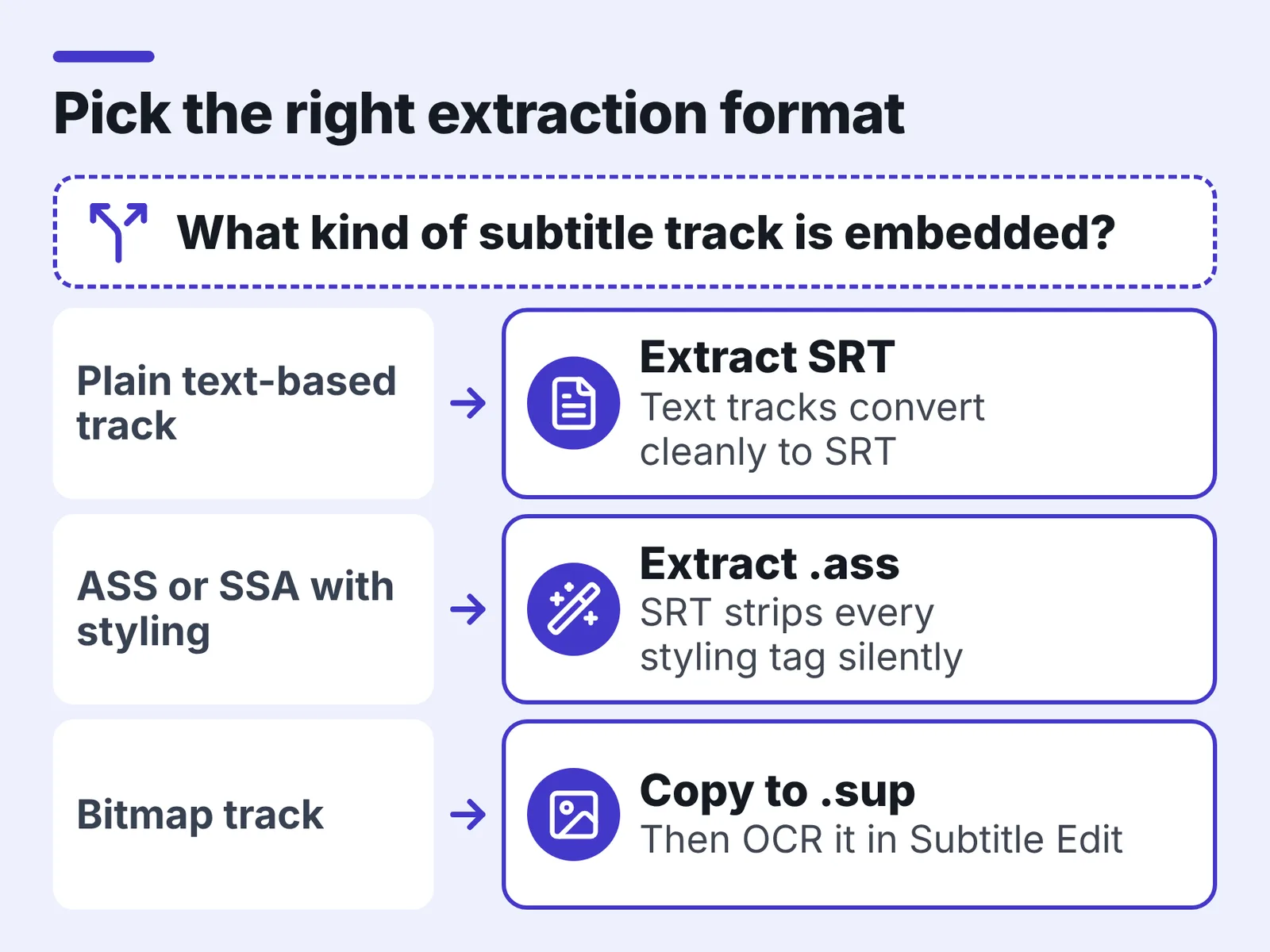
Text-based tracks convert cleanly to SRT. ASS or SSA subtitles with styling, positioning and karaoke effects should be extracted as .ass instead, because forcing them into SRT strips every styling tag silently.
Bitmap tracks refuse to become SRT at all. Extract them in their native form with ffmpeg -i input.mkv -map 0:s:0 -c copy subs.sup, then feed the .sup file into Subtitle Edit’s OCR engine.
GUI alternatives exist if the command line is not your thing. MKVToolNix handles MKV demuxing with a drag-and-drop interface, Subtitle Edit opens video files directly and lists embedded tracks, and HandBrake can pass tracks through during a convert. All three do the same copy operation underneath.
Step 3 — Recover burned-in subtitles with OCR or AI transcription
Time: 15–40 minutes for a ten-minute clip. What you need: Subtitle Edit, or a transcription service plus the audio.
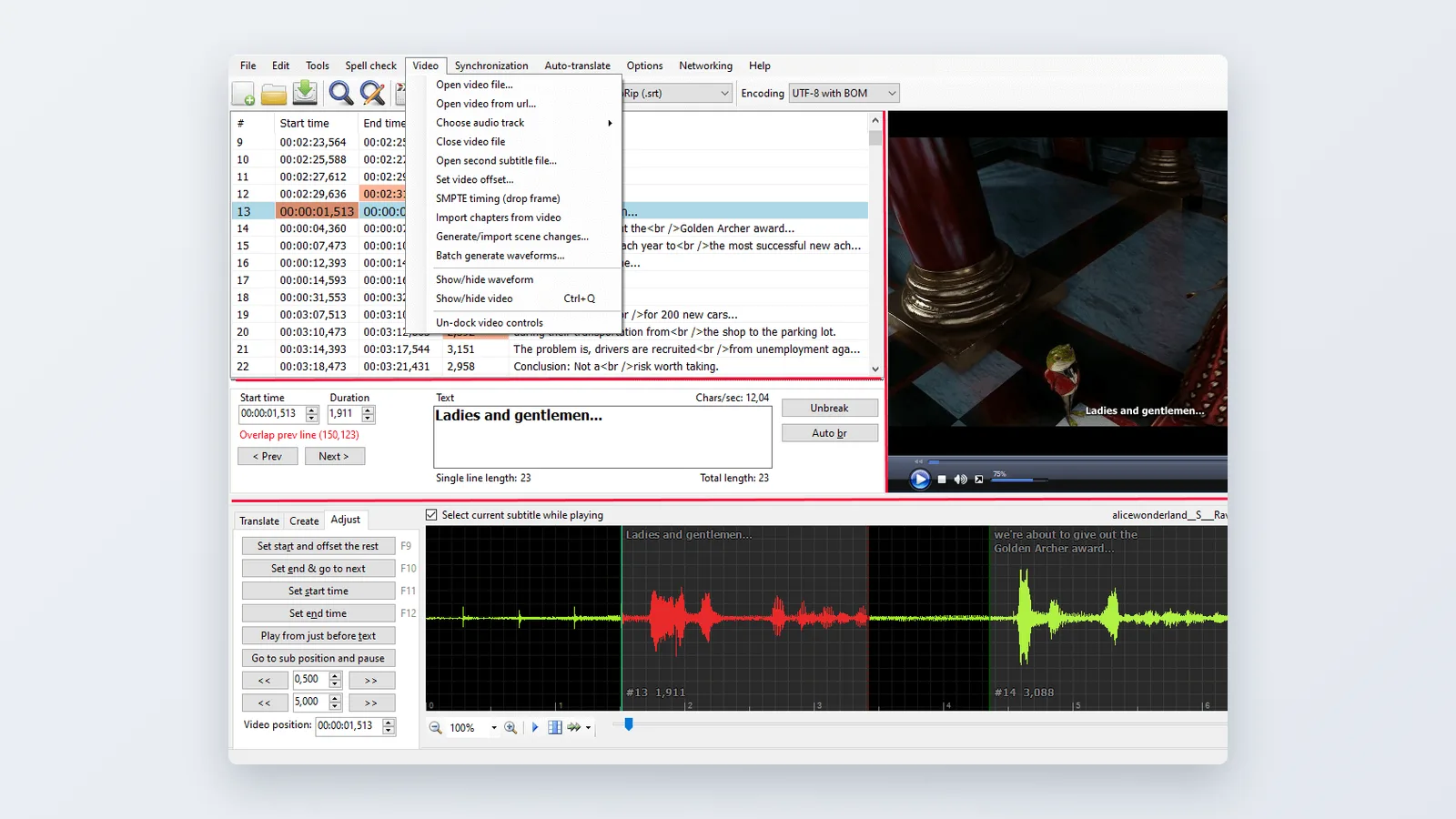
OCR reads the pixels. In Subtitle Edit, choose Video → Import subtitles from video file with OCR, mark the rectangle where captions appear, and let it scan frame by frame. Accuracy climbs when the text sits on a solid bar and falls fast on busy backgrounds, thin fonts or semi-transparent boxes.
Transcription rewrites from the audio instead and ignores the picture completely. That is the better route when the burned-in text is decorative, animated word-by-word, or simply unreadable — but you get what was said, not exactly what was displayed, so a translated or shortened caption track cannot be recovered this way.
A paid service earns its place when the clip is long, multilingual or needed the same day and OCR is fighting the footage: Rev says its AI captioning covers more than 37 languages, starts at $0.25 per minute and turns work around in five minutes or less.
Whichever route you pick, proofread against the video at full speed once. OCR engines confuse I/l/1 and rn/m constantly, and transcription engines invent plausible brand names.
Step 4 — Clean up timing, line breaks and encoding in a subtitle editor
Time: 10–20 minutes per ten minutes of video. What you need: Subtitle Edit or Aegisub, plus the source video loaded alongside the subtitle file.
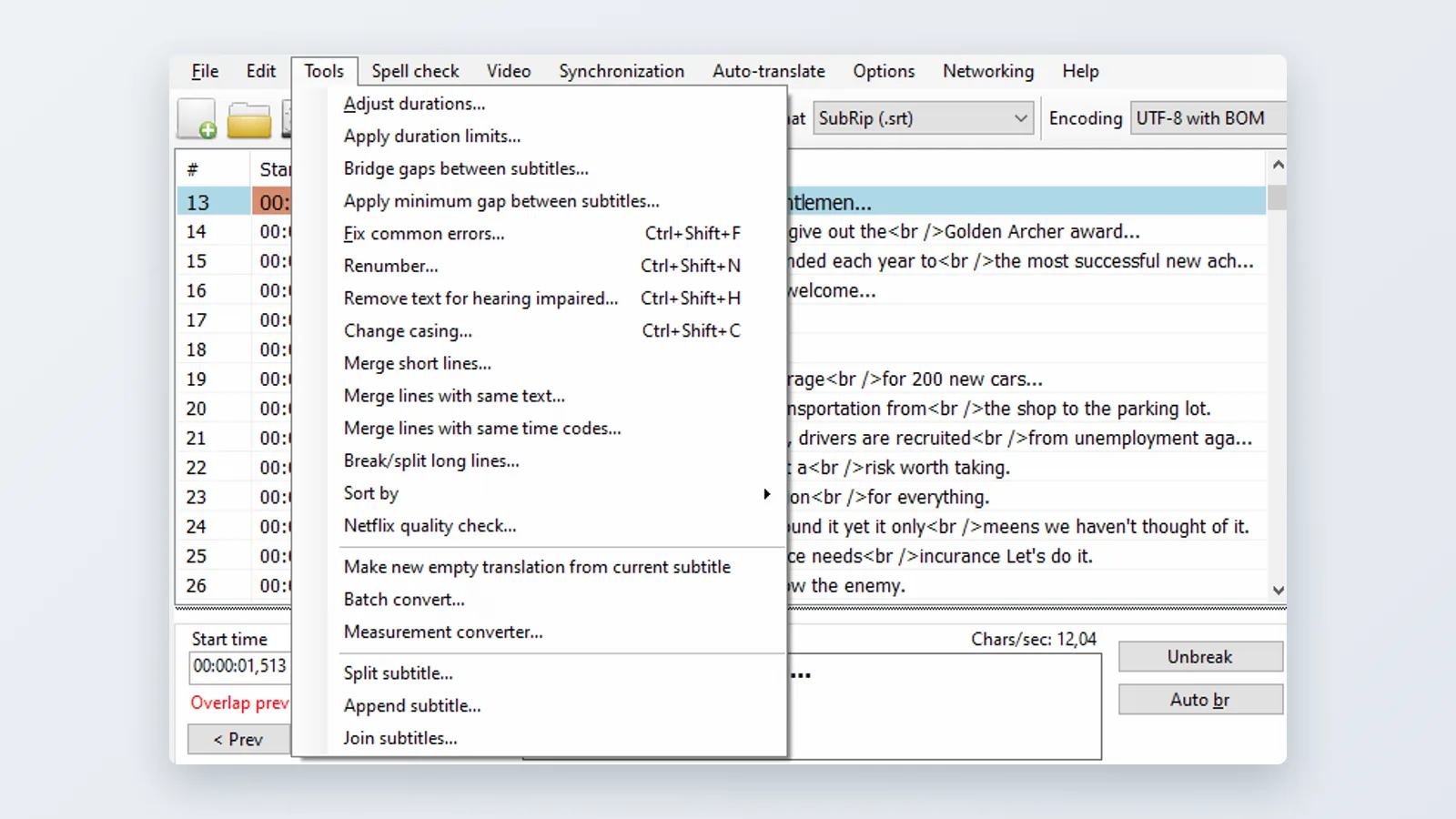
Run the automated fixes first. Subtitle Edit’s Tools → Fix common errors catches overlapping timecodes, empty lines, missing spaces after punctuation and durations too short to read. Set a minimum display duration of roughly one second and a maximum of around six — a working convention among editors rather than a published standard.
Line breaks matter more than beginners expect. Two lines of about 42 characters each is the ceiling most editors work to by convention, and breaking at a natural phrase boundary rather than mid-clause simply reads more naturally.
Encoding is where files break quietly. Save as UTF-8 without BOM; anything else turns accented characters into mojibake on half the platforms you upload to.
Free tiers run out quickly if you outsource this stage — Rev’s free plan includes only 45 AI transcription and caption minutes per month. For long-form work, budget the cleanup time instead of the credits, and fold it into your regular editing routine for long-form video.
Step 5 — Export to SRT, VTT or the format your platform requires
Time: under five minutes. What you need: the cleaned file and a clear idea of where it is going.
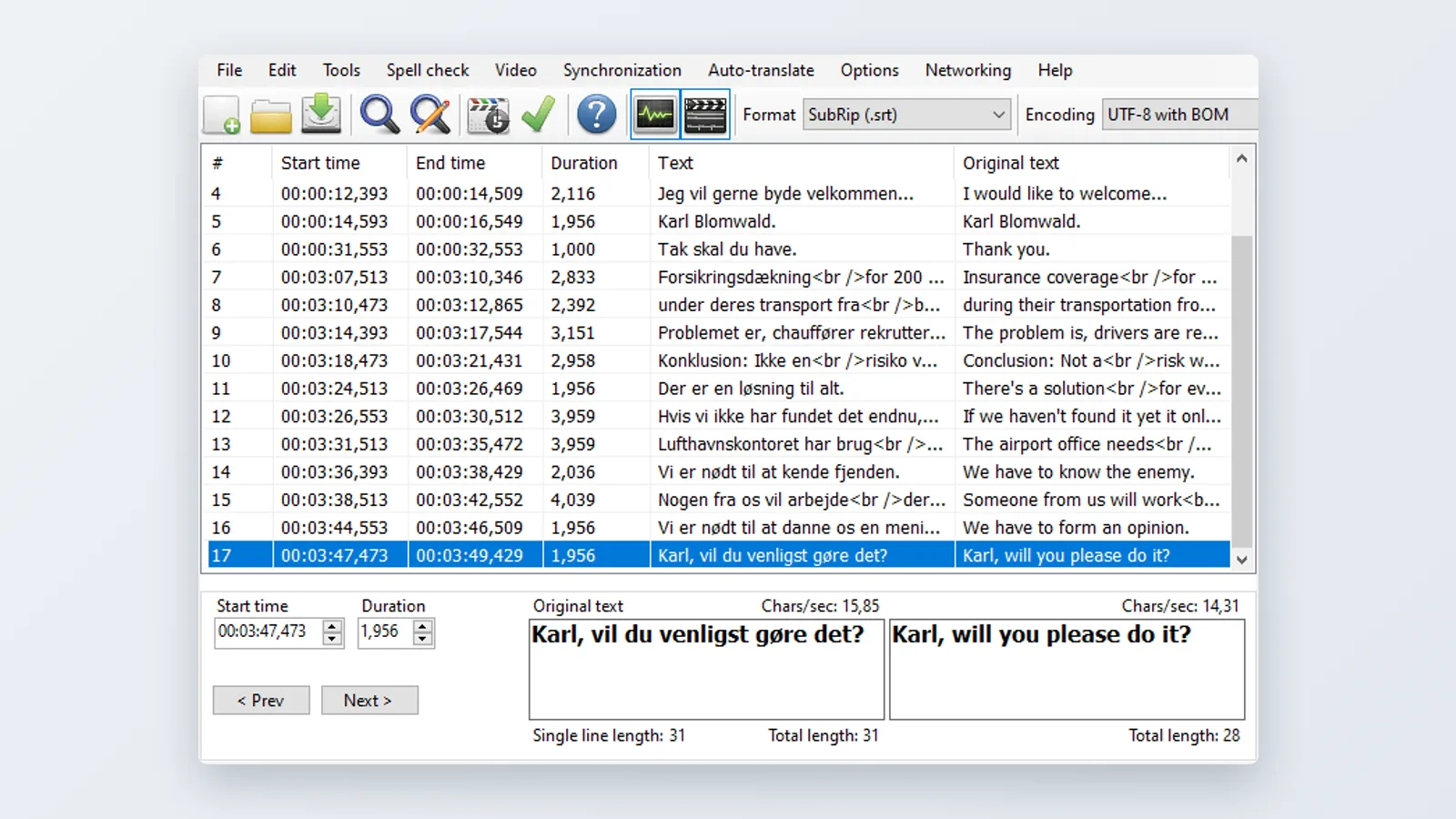
One note on the screenshot in this section: the encoding field it shows reads UTF-8 with BOM, which is not the setting to keep — export without the BOM, as described in Step 4.
Format choice is dictated by the destination, not by preference:
- SRT — YouTube, Vimeo, Premiere Pro, DaVinci Resolve, LinkedIn. The safe default.
- VTT (WebVTT) — HTML5
<track>elements, most web players, podcast platforms. Supports positioning and styling cues. - ASS/SSA — anime fansubs and any track where font, color and placement must survive.
- TTML/DFXP — broadcast and some enterprise video platforms.
Name files with the language code the platform expects, usually video.en.srt or video.es.vtt. YouTube reads the suffix on bulk uploads.
If the end goal is a clip that displays text without a sidecar file, you are back to rendering it in — which is covered in the guide to burning subtitles into the video itself. Paid providers treat that as a separate line item: Rev prices burned-in captions as an add-on costing an extra $0.30 per minute on top of its caption rate.
For quick social edits, a template-based tool also works — see how subtitles get added inside Canva when the file never needs to leave that workflow.
Quality checklist before you publish the subtitle file
Run every item below before the file leaves your machine. Each one catches a failure that is invisible until someone else plays the video.
- ☐ Encoding is UTF-8 — open the file in a text editor and confirm accented characters, em dashes and quotes render correctly.
- ☐ No overlapping timecodes — the editor’s error check returns zero overlaps.
- ☐ Sync holds at the end — jump to the last 60 seconds and confirm the text still matches the audio, not just the opening.
- ☐ Line length stays readable — no cue longer than two lines, no line much past the 42-character working limit.
- ☐ Speaker changes are marked — hyphens or names where two people talk over each other.
- ☐ Numbers, names and brands are verified — OCR and speech engines both fail here first.
- ☐ Filename carries the language code —
name.en.srt, notsubtitles_final2.srt.
Accuracy expectations should be set honestly. Rev markets its human closed captioning service at 99% accuracy, which is the realistic ceiling for a proofread human pass rather than a first-draft automated one.
Save the cleaned file next to the master video, not in a downloads folder. Six months later you will want it again for a re-cut, a translation or a repurposed clip.
Common mistakes when extracting subtitles (and how to avoid them)
The failure that wastes the most time: running FFmpeg against a file that has no subtitle stream and assuming the tool is broken. FFmpeg returns "Stream map ‘0:s:0’ matches no streams" — that message means burned-in text, not a bug. Check with ffprobe first.
Second mistake: converting ASS to SRT and losing every styling tag. Positioning, fonts and colors vanish without a warning, so keep the original .ass as your archive copy.
Third: trusting OCR output without watching the video. Low-contrast captions produce confident, wrong text, and nothing in the file flags it.
Fourth: re-encoding before extracting. Any export through a social platform or a phone app can strip the subtitle stream, which forces you into OCR for text that was once perfectly extractable.
Fifth: underestimating what outsourcing costs at scale. Rev charges $1.99 USD per video minute for human-made English captions, with no additional fees, and Rev charges $3.25 USD per video minute for Spanish captions — multiply that by a back catalog before you commit.
Keep a folder of source files with intact tracks and most of these problems never appear.
Frequently asked questions
Can FFmpeg extract burned-in subtitles?
No. FFmpeg copies or converts existing streams, and burned-in captions are part of the video picture, not a stream. You need OCR in a tool like Subtitle Edit, or a fresh transcription of the audio, which Rev offers from $0.25 per minute for AI captions.
How do I know whether my video has a soft subtitle track?
Open it in VLC and check Subtitle → Sub Track, or load it into MediaInfo’s Tree view and look for a "Text" block. If disabling subtitles in the player still leaves text on screen, the captions are burned in and must be recovered with OCR.
Should I export SRT or VTT?
Use SRT for YouTube, Vimeo, LinkedIn and desktop editors such as Premiere Pro and DaVinci Resolve. Use VTT when the file feeds an HTML5 player through a track element or when you need cue positioning and basic styling preserved in a browser.
Is OCR more accurate than AI transcription for burned-in captions?
OCR reproduces the exact words displayed on screen, which matters for translated or condensed captions. Transcription rebuilds text from the audio instead. Rev advertises 95%+ accuracy for its AI captions, but that figure describes audio transcription, not on-screen text recognition.
What does it cost to have subtitles extracted professionally?
Rev’s published starting rates are $1.99 per minute for human services and $0.25 per minute for AI services. Rev’s free plan includes only 45 AI transcription and caption minutes per month, so a single long interview can exhaust it in one upload.
Sources
Written with AI assistance and fact-checked against the sources cited above before the Video Editor Editorial Team published it.