Review footage and write a paper edit, cut the hook first, run a ruthless tightening pass to kill dead air and filler, layer pattern interrupts every few sentences, then export at YouTube’s recommended specs so compression doesn’t undo the work.
Why YouTube Retention Is Won in the Edit, Not the Camera
A sharp lens and a good microphone set your ceiling. The edit decides whether anyone stays long enough to notice either one. Retention graphs sag on the same handful of things: a slow open, a sentence restarted three times, a point already made two minutes earlier.
Your timeline is a filter. Every cut is a decision about whether attention survives the next ten seconds of your video. Raw footage is a transcript of your thinking; the published video should be a transcript of your conclusions.
This is also why gear upgrades rarely move the graph. Swapping a mirrorless body for a cinema camera changes texture, not pacing, and pacing is what viewers feel in the first thirty seconds.
The workflow below runs in five steps: paper edit, hook, tightening pass, pattern interrupts, export. Each one has a time budget so you can plan a session instead of drifting through it. There is a trade-off worth naming early — tightening everything to the frame kills comedic timing and makes dense explanations impossible to follow, so you will deliberately leave some air in.
Step 1 — Review Your Footage and Write a Paper Edit Before You Open the Timeline
Time: 20–40 minutes for every 30 minutes of raw footage. You need: your clips, an auto-generated transcript, and a plain text document.
Watch everything once at normal speed without touching a razor tool. Mark timecodes for the takes that land, the tangents that do not, and any moment where your energy drops. You are building a shopping list, not an edit.
Then write the paper edit: a numbered outline of the beats you will actually keep, in the order a stranger needs them. If a beat cannot be defended in one sentence, it is a candidate for deletion before it ever reaches a timeline.
Check your source format while you are here. YouTube instructs creators to deinterlace interlaced footage before uploading, giving 1080i60 converted to 1080p30 as its example, so screen recordings, older camcorder clips and broadcast grabs need handling now rather than at export.
A paper edit also protects you from the sunk-cost problem. Once a ten-minute take is sitting on the timeline with color and audio work applied, cutting it feels like destroying labor. Deciding on paper means you never do that labor in the first place.
Step 2 — Cut the Hook First: Earn the First 30 Seconds
Time: 30–60 minutes. You need: your three or four best intro takes and any b-roll that proves your claim.
Build the opening before anything else, while you still have energy and judgment. Editors who leave the hook for last almost always ship a weak one, because by then they want the project finished more than they want it good.
A hook that holds does three jobs fast:
- Names the payoff. What the viewer can do after watching, in plain words.
- Shows proof. A result, a screen, a before-and-after — something visual within the first few seconds.
- Sets stakes. Why doing it badly costs them time, money or reach.
Aim to keep the spoken intro under roughly 60 words, and cut any sentence that explains what you are about to explain. Phrases like "in this video I’m going to show you" are pure delay; start with the show.
Watch the hook back with your eyes closed. If the audio alone does not make you curious, the visuals are carrying a weak script, and visuals stop working the moment someone opens a second tab.
Step 3 — Make a Ruthless Tightening Pass (Dead Air, Filler Words, Repetition)
Time: 45–90 minutes for a 10-minute finished video. You need: a transcript-linked timeline or a silence-detection tool, plus headphones.
Run three separate passes instead of one. Pass one removes silence: every breath gap longer than a natural beat, every moment you looked away to check your notes. Pass two removes filler — "um," "so yeah," "basically," "kind of" — using ripple delete so the timeline closes behind you.
Pass three is the hard one. You read the transcript and delete whole sentences that repeat a point you already made. Most talking-head footage says the same thing two or three ways because that is how people think out loud.
Hide the joins with audio. A J-cut, where the next clip’s sound starts before its picture, makes a hard splice feel like a sentence continuing rather than a jump.
Leave air where meaning needs it. A beat of silence after a punchline or a hard number reads as confidence, while the same silence before an unremarkable sentence reads as hesitation. Listen on headphones for breath spikes you flattened too aggressively, because over-tightened dialogue sounds robotic long before viewers can explain why.
Step 4 — Add Pattern Interrupts: B-Roll, Captions, Sound Design and Chapter Breaks
Time: 60–120 minutes. You need: b-roll clips, a caption file, a small library of subtle sound effects.
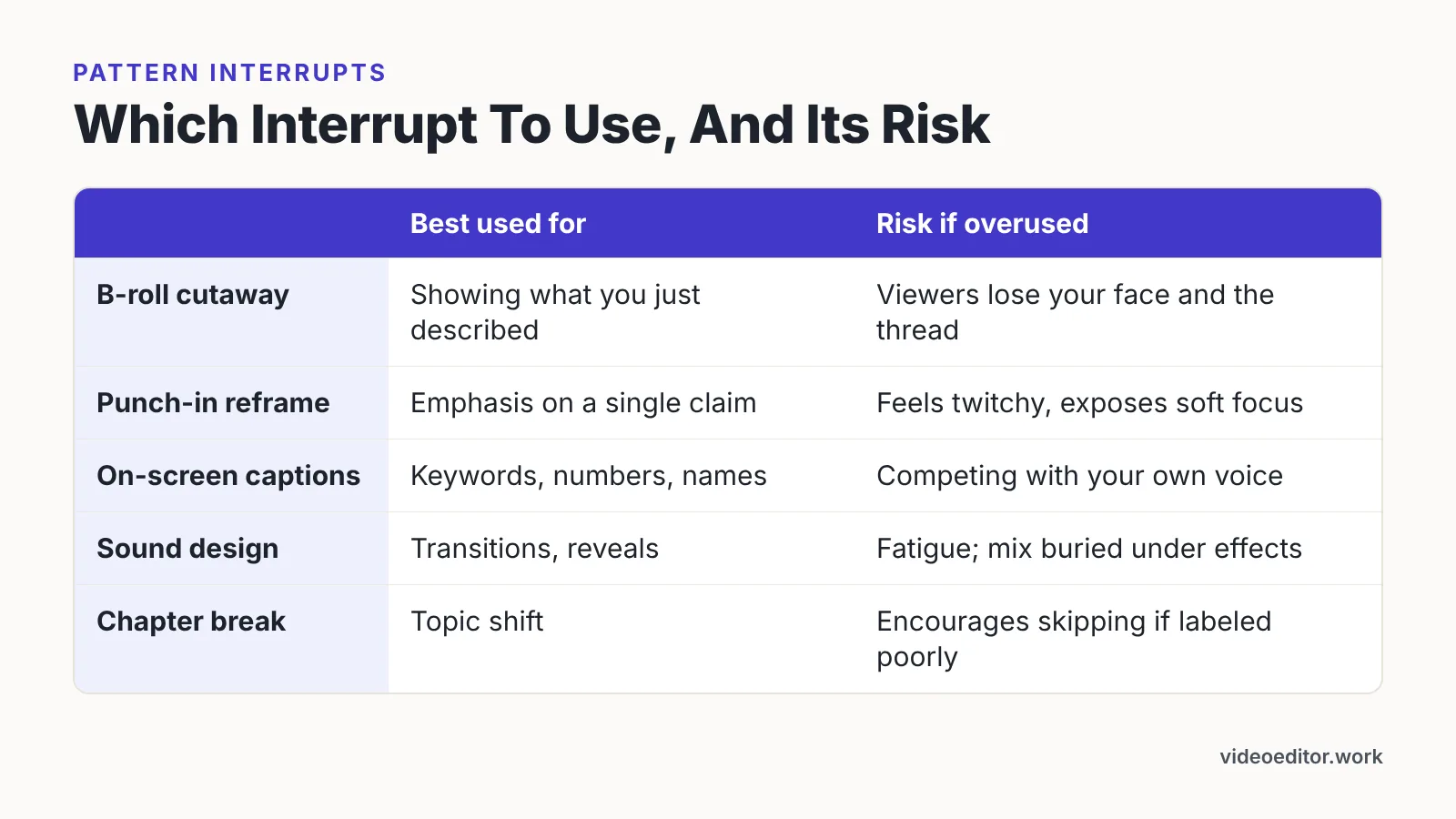
A pattern interrupt is any change that resets attention: a cutaway, a zoom punch-in, a caption that lands on a keyword, a whoosh under a transition. Plan one every few sentences rather than sprinkling them randomly at the end.
| Interrupt | Best used for | Risk if overused |
|---|---|---|
| B-roll cutaway | Showing what you just described | Viewers lose your face and the thread |
| Punch-in reframe | Emphasis on a single claim | Feels twitchy, exposes soft focus |
| On-screen captions | Keywords, numbers, names | Competing with your own voice |
| Sound design | Transitions, reveals | Fatigue; mix buried under effects |
| Chapter break | Topic shift | Encourages skipping if labeled poorly |
Captions carry extra weight because a large share of viewing happens with sound off or at low volume in public. Burn in short keyword captions for emphasis, and upload a full subtitle file separately rather than relying on burned-in text for accessibility.
For segments you narrate but never appear in — product explainers, localized versions, recurring intros — a synthetic voice or avatar insert can save a reshoot. AI Studios, DeepBrain AI’s cloud platform for AI avatar and text-to-video content, offers text-to-speech voiceovers in 150+ languages and accents on paid plans and 30+ languages on its Free plan, which makes multilingual versions of a single explainer segment practical.
Step 5 — Export with YouTube’s Recommended Settings So the Edit Survives Compression
Time: 10 minutes of setup plus render time. You need: your finished sequence and an H.264 export preset.
Compression punishes sloppy exports, and fast cuts plus grain plus motion is exactly the combination that falls apart. Matching YouTube’s published targets gives the encoder a clean source to work from.
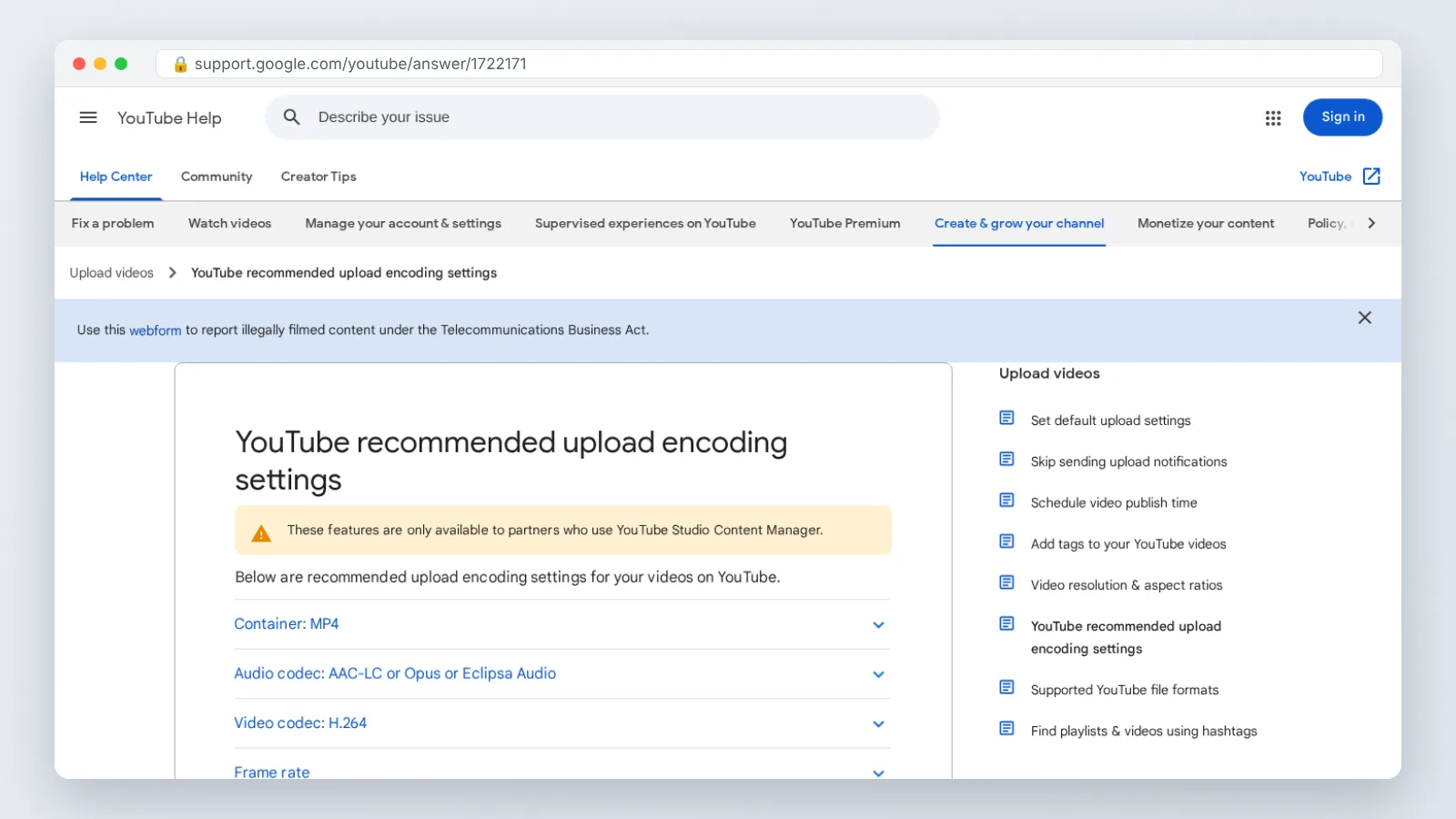
YouTube’s recommended upload encoding settings call for an SDR 1080p video bitrate of 8 Mbps at standard frame rates and 12 Mbps at high frame rates. For HDR uploads, YouTube recommends a 1080p video bitrate of 10 Mbps at standard frame rates and 15 Mbps at high frame rates.
Frame rate is not a creative choice at this stage. YouTube says content should be exported at the same frame rate it was recorded, and lists 24, 25, 30, 48, 50 and 60 frames per second among common accepted rates.
Two encoder details matter more than most editors realize. YouTube’s recommended H.264 export settings include 2 consecutive B frames and a closed GOP set to half the frame rate, both of which you can usually set in your export dialog’s advanced panel.
If you are delivering HDR, watch your resolution width. YouTube advises using UHD rather than DCI widths for HDR uploads, giving 3840×1600 instead of 4096×1716 as its example.
The Tight-Edit Checklist to Run Before You Hit Upload
Run this top to bottom with the video playing at full screen. It takes under ten minutes once you are used to it.
- ☐ The first spoken line states a payoff, not an introduction to a payoff.
- ☐ No clip of silence longer than a natural breath, start to finish.
- ☐ Every repeated point appears once, in the strongest take.
- ☐ At least one visual change every few sentences in the first two minutes.
- ☐ Captions readable on a phone screen held at arm’s length.
- ☐ Music ducks under speech; no effect louder than your voice.
- ☐ Chapters mark genuine topic shifts, not arbitrary minute marks.
- ☐ Audio encoded correctly — YouTube’s formatting specifications state that uploaded audio should be encoded at 128 kbps or better.
- ☐ Export frame rate matches the capture frame rate, with no resampling.
- ☐ Final 15 seconds point somewhere specific: a next video, not a vague goodbye.
Play the first 45 seconds one more time at full volume after everything else passes. That segment decides most of your retention curve, and it is the one you have watched so many times that you have stopped hearing it.
Common Editing Mistakes That Quietly Kill Retention
The most common failure is editing the hook last. Energy runs out, the intro gets a single pass, and a video with a strong middle opens with thirty seconds of throat-clearing — avoid it by cutting the hook first, as a standalone session, before you touch anything else.
Second: trimming only the obvious bad takes. Dead air inside good takes is the bigger thief, because it accumulates invisibly across ten minutes.
Third: frame rate carelessness on film-sourced material. For film-sourced material, YouTube says a 24fps or 25fps progressive master delivers the best results, and that videos should keep their native frame rates without resampling.
Fourth: pattern interrupts that interrupt nothing. Twelve zoom punches in a row stop being a reset and become the baseline, so viewers tune them out the same way they tune out a flat delivery.
Fifth: a mix that only works in your room. Check the final audio on phone speakers and cheap earbuds, not just studio headphones, because that is where most of your audience will hear it.
Frequently asked questions
How long should editing a 10-minute YouTube video take?
Budget roughly four to six hours of hands-on work across the five steps: 20–40 minutes of review and paper editing per 30 minutes of footage, 30–60 minutes on the hook, 45–90 minutes tightening, 60–120 minutes on b-roll and captions, plus export setup and render time.
What bitrate should I export YouTube videos at?
YouTube’s recommended upload encoding settings call for an SDR 1080p video bitrate of 8 Mbps at standard frame rates and 12 Mbps at high frame rates, while HDR 1080p uploads are recommended at 10 Mbps standard and 15 Mbps at high frame rates.
Should I remove every pause when tightening a video?
No. Remove silence caused by hesitation, note-checking and breath gaps, but keep deliberate beats after punchlines, hard numbers and conclusions. Over-tightened dialogue sounds mechanical, and dense explanations become impossible to follow without a moment of air between ideas.
Do I need to change my frame rate before uploading?
Generally no — YouTube says content should be exported at the same frame rate it was recorded, listing 24, 25, 30, 48, 50 and 60 frames per second among common accepted rates. Interlaced footage is the exception; YouTube instructs creators to deinterlace it first, such as 1080i60 to 1080p30.
How do captions affect retention on YouTube?
Captions act as a pattern interrupt and a comprehension aid, especially for viewers watching at low volume. Burn in short keyword captions for emphasis on numbers and names, and upload a separate subtitle file so the full dialogue stays accessible and searchable.
Sources
Written with AI assistance and fact-checked against the sources cited above before the Video Editor Editorial Team published it.