Burn subtitles in by rendering an SRT or ASS file into the pixels — FFmpeg’s subtitles filter, HandBrake’s Burn In box, or Premiere’s caption export. Skip it when viewers need multiple languages or toggleable captions.
Burned-In vs. Embedded vs. Sidecar: What "Embedding Subtitles" Really Means
Three different workflows hide behind the word "embed," and choosing the wrong one usually costs you a full re-export.
| Type | Where the text lives | Viewer can turn it off? | Typical use |
|---|---|---|---|
| Burned-in (hardsub) | Painted into the pixels of every frame | No | Social feeds, muted autoplay, kiosk and lobby screens |
| Embedded (softsub, muxed) | A caption track inside the MP4 or MKV container | Yes, in players that read the track | Archive masters, MKV libraries, some broadcast deliveries |
| Sidecar | A separate .srt or .vtt file beside the video | Yes, always | YouTube, Vimeo, course platforms, Google Drive |
Burning in is destructive by design. The glyphs become video data, so a typo in frame 1,400 means re-rendering the whole timeline, and a bad font choice is baked in forever.
Embedding a soft track inside an MP4 is different: the text stays selectable, but MP4’s mov_text format strips most styling, and plenty of social platforms ignore the track completely. That mismatch is why creators who post to TikTok, Instagram and LinkedIn almost always hardsub instead.
Sidecar files win on flexibility. They are searchable, machine-readable, translatable, and the viewer controls them — which is also exactly why a silent feed scroll can never see them.
Step 1 — Prepare a Clean Subtitle File (SRT, VTT or ASS)
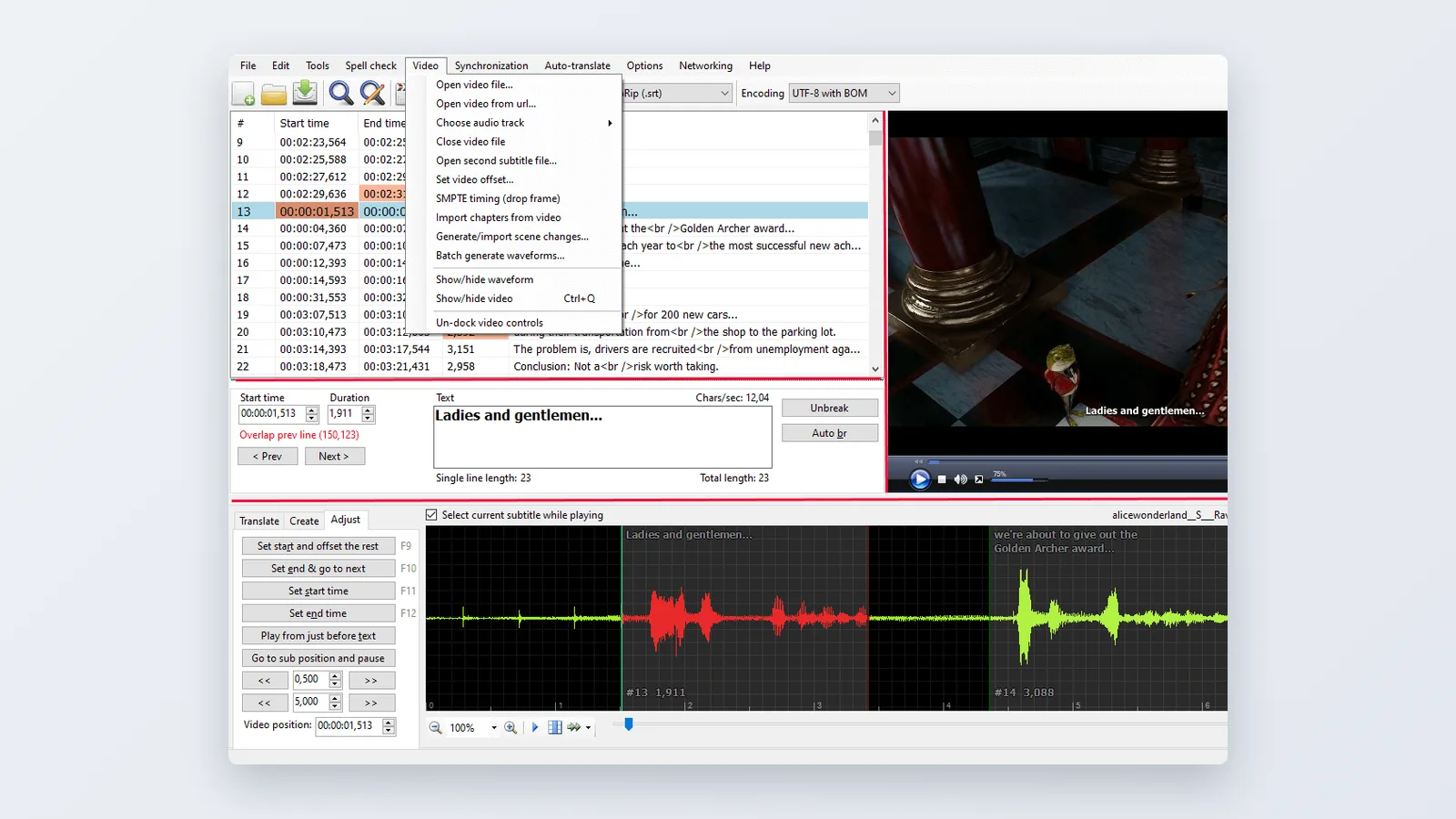
Time: 10 to 30 minutes for a short video. What you need: a finished transcript, a subtitle editor such as Subtitle Edit or Aegisub, and the final cut of your video — not a rough one.
Pick the format by what it has to survive:
- SRT — plain timing plus text. Universal, almost no styling, the safest input for burn-in.
- VTT — the web captioning format, used by HTML5 players and most LMS tools.
- ASS/SSA — carries font, size, outline, shadow and position. Use it when you want karaoke-style or per-speaker styling baked in.
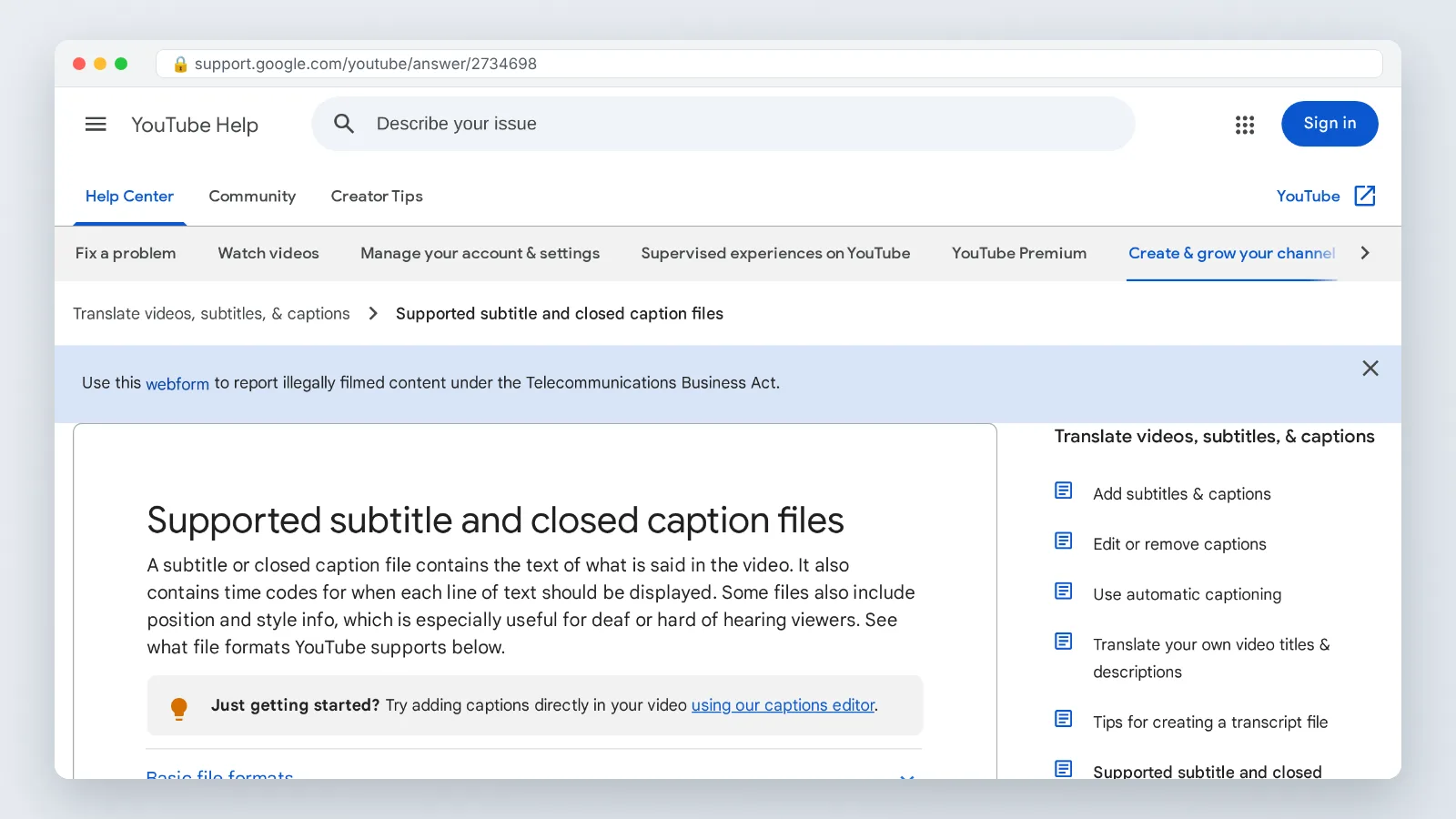
According to YouTube Help, YouTube accepts SubRip (.srt) caption files but only in basic versions: it ignores style markup and requires the file to be saved as plain UTF-8 text. Save your master SRT the same way even if you plan to burn it in, so the file stays reusable later.
Run four checks before you move on. Confirm the encoding is UTF-8, confirm no two events overlap in time, confirm the file’s assumed frame rate matches your sequence, and read the whole thing once for spelling — because after rendering, a correction costs another export.
Strip speaker labels you do not need. Keep the ones that prevent confusion in multi-person interviews.
Step 2 — Set Line Length, Reading Speed and Safe-Area Position Before You Render
Time: 15 to 40 minutes. What you need: your subtitle editor plus the target platform’s aspect ratio open on a second screen or a phone.
Professional style guides give you tested limits to copy. Netflix’s English (USA) Timed Text Style Guide caps subtitles at 42 characters per line. Netflix also limits English subtitle reading speed to 20 characters per second for adult programs and 17 characters per second for children’s programs.
Duration has two edges. Netflix allows a single subtitle event to stay on screen for a maximum of 7 seconds, and Netflix sets a minimum subtitle duration of five-sixths of a second, which is 20 frames at 24fps and 25 frames at 29.97fps.
Position is where most social edits fail. Vertical platforms stack usernames, captions, sound titles and buttons across the lower third, so lift your text well above the bottom edge and leave a margin on both sides.
Styling advice that holds up in muted feeds: one weight of a clean sans-serif, a solid outline or a semi-transparent box behind the text, and no more than two lines at a time. Test the contrast over your brightest shot, not your darkest one.
Step 3 — Burn the Subtitles Into the Picture (FFmpeg, Premiere Pro, HandBrake, CapCut)
Time: 2 minutes to set up, then render time. What you need: the video, the finished subtitle file in the same folder, and one of the four tools below.
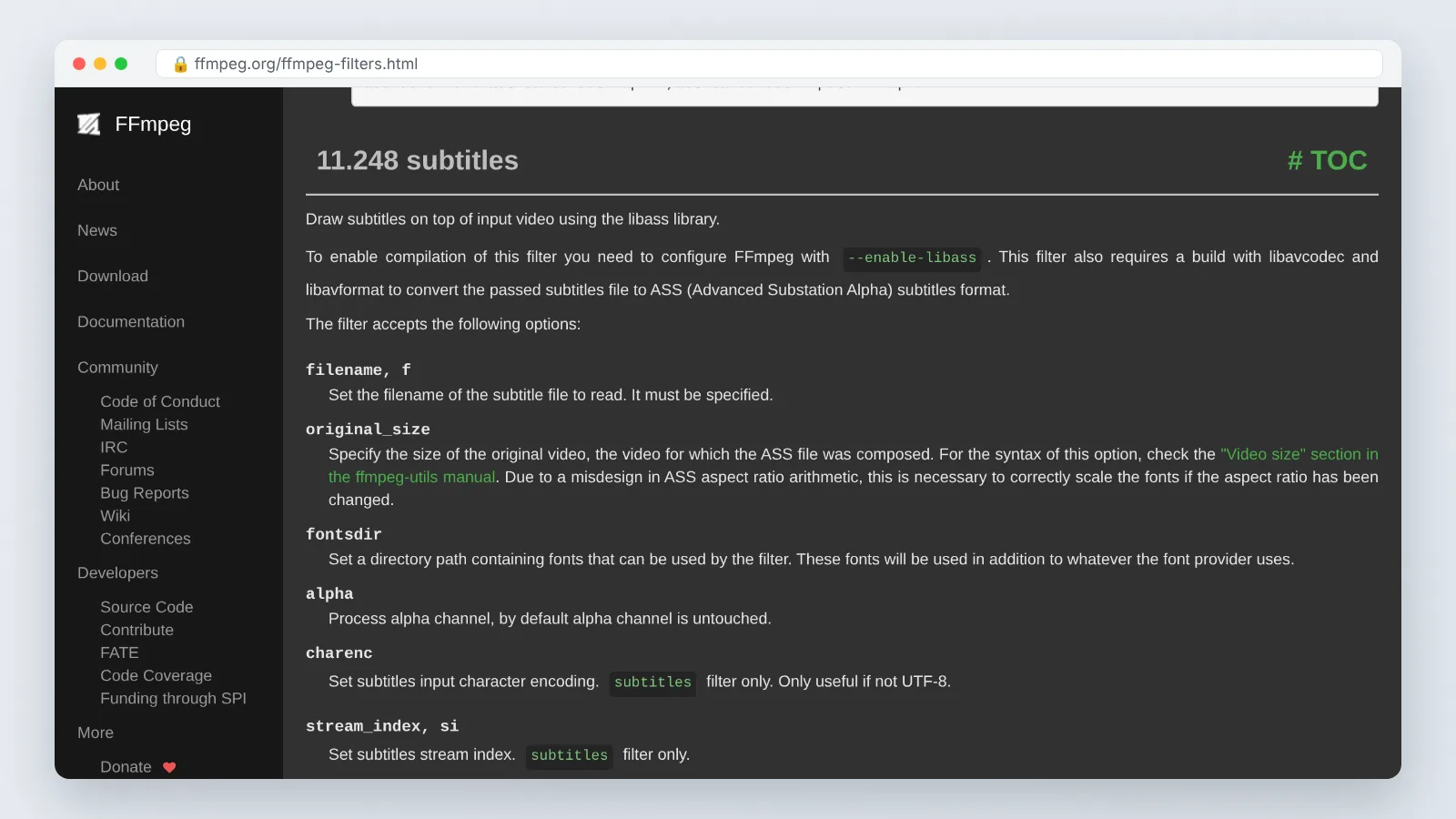
FFmpeg is the fastest route for batch work. As FFmpeg’s documentation describes, the subtitles filter draws text onto the video using libass and requires an FFmpeg build compiled with –enable-libass.
“`
ffmpeg -i input.mp4 -vf "subtitles=subs.srt" -c:a copy output.mp4
“`
For control over look and height, pass force_style:
“`
ffmpeg -i input.mp4 -vf "subtitles=subs.srt:force_style=’FontName=Arial,FontSize=24,Outline=2,MarginV=90’" -c:a copy output.mp4
“`
If you built an ASS file with its own styling, use the ass filter instead: -vf "ass=subs.ass". On Windows, escape the colon in drive paths or FFmpeg will read it as a filter argument.
Premiere Pro: import the SRT into a caption track, align it to the sequence, then in Export Settings switch the Captions option to burn them into the video rather than export a sidecar.
HandBrake: open the Subtitles tab, import the SRT track, and tick Burn In. HandBrake re-encodes the video, so start from your highest-quality master.
CapCut: auto-captions land as editable text layers and export baked into the picture by default, which is convenient for vertical edits and impossible to undo later.
Step 4 — Export, Then Verify the Hardsubbed File on a Phone
Time: 10 minutes after the render finishes. What you need: the exported file, a phone, and headphones you can take off.
Move the file to a phone and watch it at full brightness, outdoors if you can. Hold it at arm’s length, mute the audio, and read along — that is the real viewing condition for most feed traffic.
Check five things in one pass: text legibility over the brightest shot, no clipping at the frame edge, no drift between speech and text at the end of the video, no overlapping events, and no cut-off descenders on letters like g and y.
Drift almost always means a frame rate mismatch. A 23.976fps subtitle file laid over a 25fps render slips gradually, so the first line looks fine and the last line is a second late.
Hardsubbing also removes file-size limits on the caption side. Google Drive Help states that Drive rejects sidecar caption tracks larger than 2 MB, a ceiling that simply does not apply once the text lives in the pixels.
When You Should Not Burn Subtitles In
Skip hardsubbing in these situations:
- Multiple languages. Burned text locks one language into the picture; a sidecar or soft track lets one master file serve many audiences.
- Accessibility requirements. Viewers who need to resize, restyle or disable captions lose that control the moment you render them in.
- Search and indexing. Platforms read sidecar caption files as text; they cannot read pixels.
- Work still in review. Any copy change after burn-in means a new render of the full video.
- Live or near-live delivery. According to YouTube Help, YouTube carries only a single caption track for live streams using embedded CEA-608/708 captions, even though the 608/708 standard itself allows up to 4 language tracks.
Localization is the clearest case for keeping text separate. If you are producing the same explainer in several languages, generating each version from a script is cheaper than re-rendering burned text per language — tools like AI Studios offer text-to-speech voiceovers in 150+ languages and accents on paid plans, with 30+ languages on the Free plan.
A practical middle path: deliver a hardsubbed cut for social feeds and a clean cut plus SRT for your website and video platform. One source transcript, two outputs.
Accessibility obligations differ by country, sector and whether the organization is public or private, so treat this as general information, not legal advice.
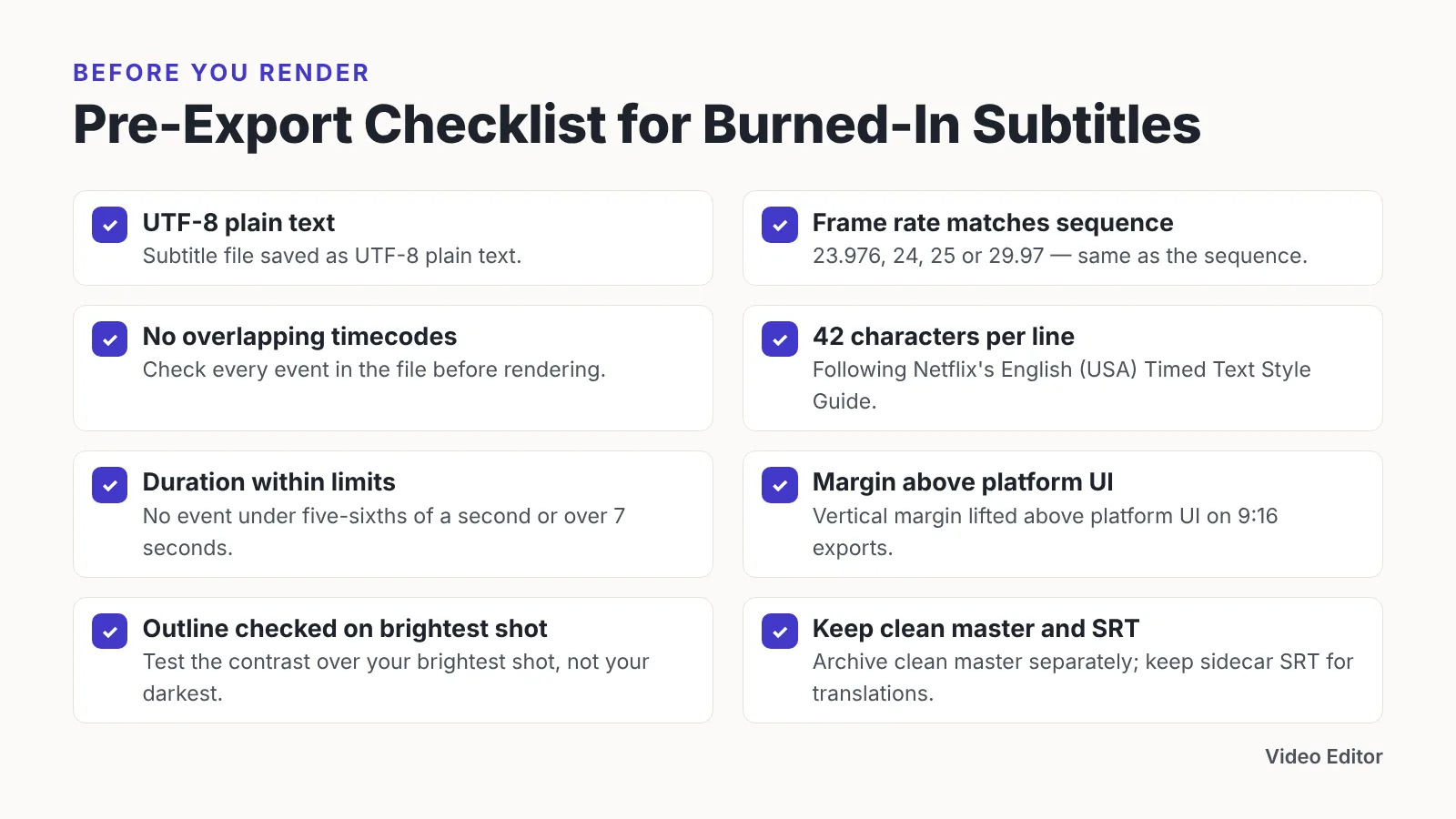
Pre-Export Checklist
Run this before you hit render, not after. Each line maps to a failure someone has already shipped.
- ☐ Subtitle file saved as UTF-8 plain text
- ☐ Frame rate of the subtitle file matches the sequence (23.976, 24, 25 or 29.97)
- ☐ No overlapping timecodes anywhere in the file
- ☐ Lines kept at or under 42 characters, following Netflix’s English (USA) guide
- ☐ No event shorter than five-sixths of a second or longer than 7 seconds, per Netflix’s templates guide
- ☐ Vertical margin lifted above platform UI on 9:16 exports
- ☐ Outline or background box checked against the brightest shot
- ☐ Spelling, names and numbers proofread by a second person
- ☐ Clean master archived separately from the hardsubbed version
- ☐ Sidecar SRT kept for YouTube, your site and future translations
Archive the clean master in the same folder as the subtitle file and name both with the same slug. Six months later, when marketing asks for a Spanish version, you will re-render in minutes instead of rebuilding the timeline.
Common Mistakes to Avoid When Embedding Subtitles
The most expensive mistake is burning subtitles into a video that has not been locked. Someone trims four seconds from the intro after the render, every caption shifts out of sync, and the only fix is exporting the whole thing again — avoid it by treating hardsubbing as the final step after picture lock and audio mix.
Second mistake: placing text at the default bottom position on vertical video. The platform’s own interface covers it, and viewers see half a word under a button.
Third: pasting styled text into an SRT. Markup that your editor shows as bold often renders as visible tags or gets dropped, and YouTube Help confirms that YouTube ignores style markup in SubRip files entirely.
Fourth: re-encoding a file that was already compressed twice. Burn-in requires a full video re-encode, so start from the highest-quality master you own, not the version you downloaded from a social platform.
Frequently asked questions
Does burning subtitles into a video reduce quality?
Yes, slightly, because the video must be re-encoded to paint the text into each frame. Start from your highest-quality master, use a generous bitrate or a low CRF value in FFmpeg or HandBrake, and the loss stays invisible at normal viewing distance.
Should I upload a hardsubbed video to YouTube or use an SRT file?
Use an SRT sidecar for YouTube. YouTube Help states that YouTube accepts SubRip (.srt) files saved as plain UTF-8 text, ignoring style markup, and those files stay searchable, translatable and toggleable — advantages burned-in pixels cannot offer.
How long should each subtitle stay on screen?
Netflix’s Timed Text Style Guide allows a single subtitle event to stay on screen for a maximum of 7 seconds and sets a minimum duration of five-sixths of a second, which is 20 frames at 24fps and 25 frames at 29.97fps. Those limits work well for online video too.
Why do my burned-in subtitles drift out of sync near the end?
That pattern almost always means a frame rate mismatch between the subtitle file and the sequence — a 23.976fps file over a 25fps timeline, for example. Re-time the file to the project frame rate in Subtitle Edit, then re-render from the clean master.
Can I burn subtitles in with FFmpeg on any installation?
Only on builds that support libass. FFmpeg’s documentation notes that the subtitles filter draws text with libass and requires a build compiled with –enable-libass, so check your build’s configuration output first; most official static builds already include it.
Sources
- Supported subtitle and closed caption files – YouTube Help
- Live caption requirements – YouTube Help
- Add caption tracks to your video files – Google Drive Help
- English (USA) Timed Text Style Guide – Netflix Partner Help Center
- Timed Text Style Guide: Subtitle Templates – Netflix Partner Help Center
- Burn subtitles from srt file into video with ffmpeg – Garden of Learning by Juhis (quoting FFmpeg documentation)
Written with AI assistance and fact-checked against the sources cited above before the Video Editor Editorial Team published it.