Crop a video in Clipchamp on Windows, Photos or iMovie on Mac, the Photos app on iPhone and Google Photos on Android — pick the target aspect ratio first, drag the crop handles, then export a new file.
Cropping vs. trimming vs. resizing: what you’re actually changing
Three separate edits get called "cropping" in everyday conversation, and confusing them is the fastest way to waste an export. Cropping cuts pixels off the edges of the picture. Trimming cuts seconds off the start or end of the clip.
| Edit | What it changes | What it leaves alone | Use it when |
|---|---|---|---|
| Crop | Frame edges, composition, aspect ratio | Duration, audio | A landscape clip has to fill a vertical feed |
| Trim | Start and end timecodes | Framing, resolution | The first few seconds are dead air |
| Resize / scale | Output pixel dimensions | What is inside the frame | The master file is too heavy to upload |
Cropping is destructive in one specific way: the pixels you cut do not come back once you export. A 1080p landscape clip cropped to a tall vertical slice keeps only a narrow column of its original width, and stretching that column back to full height softens every edge in the shot.
Keep the original file untouched in a separate folder before you start. Export the crop as a new file with a clear name. That habit lets you recrop from the full-quality source instead of cropping a crop, which is where visible mush comes from.
Step 1 — Choose your target aspect ratio and resolution before you crop
Time: about five minutes. What you need: the destination platform’s shape requirement, and the resolution of your source clip (right-click the file and check its properties on Windows, or Get Info on Mac).
The standard crop target for YouTube Shorts is a 9:16 vertical frame at 1080 x 1920 pixels, according to vidIQ. Write your target down before you open an editor. Every tool below asks you for a shape at some point, and guessing mid-edit is how people end up with black bars.
| Ratio | Shape | Typical use |
|---|---|---|
| 16:9 | Wide landscape | Desktop players, TV-style playback |
| 9:16 | Full-height vertical | Vertical short-form feeds |
| 1:1 | Square | Feeds that mix orientations |
| 4:5 | Tall, not full height | Mobile posts that need caption room |
Check one more number: your source resolution. Cropping a 4K clip down to a vertical frame usually still leaves you more than 1080 pixels of width to work with, so the result stays sharp. Cropping a 1080p clip to vertical does not, and whatever you deliver will be an upscale of a small region.
Shoot wider than you need when you know a vertical crop is coming. Framing a subject with room on both sides gives the crop somewhere to go.
Step 2 — Crop a video on Windows in Clipchamp
Time: about three minutes for a single clip. What you need: Windows 11 or Windows 10 with Clipchamp installed, and your source file on local storage rather than a slow network drive.
In Clipchamp on Windows, cropping is done by selecting the asset on the timeline, clicking the crop button on the floating toolbar, and dragging the freehand handles that appear on the sides, top and bottom of the preview, according to Microsoft Support.
- Create a new project and import the clip.
- Drag the clip onto the timeline, then click it once so the floating toolbar appears.
- Set the project’s aspect ratio to your Step 1 target before cropping, so the preview shows the real output shape.
- Click the crop button and drag the side, top or bottom handles to cut the edges you don’t want.
- Reposition the clip inside the frame if your subject sits off-center.
- Play the whole clip back before exporting — a crop that frames a static shot perfectly can decapitate someone who stands up at the ten-second mark.
Export to MP4 at the highest resolution Clipchamp offers for your project shape. If the preview shows colored bars at the edges, the clip is not yet filling the frame and needs scaling, not more cropping.
Step 3 — Crop a video on Mac in Photos and iMovie
Time: two minutes in Photos, five in iMovie. What you need: a Mac with the clip in your Photos library, or the file on disk for iMovie.
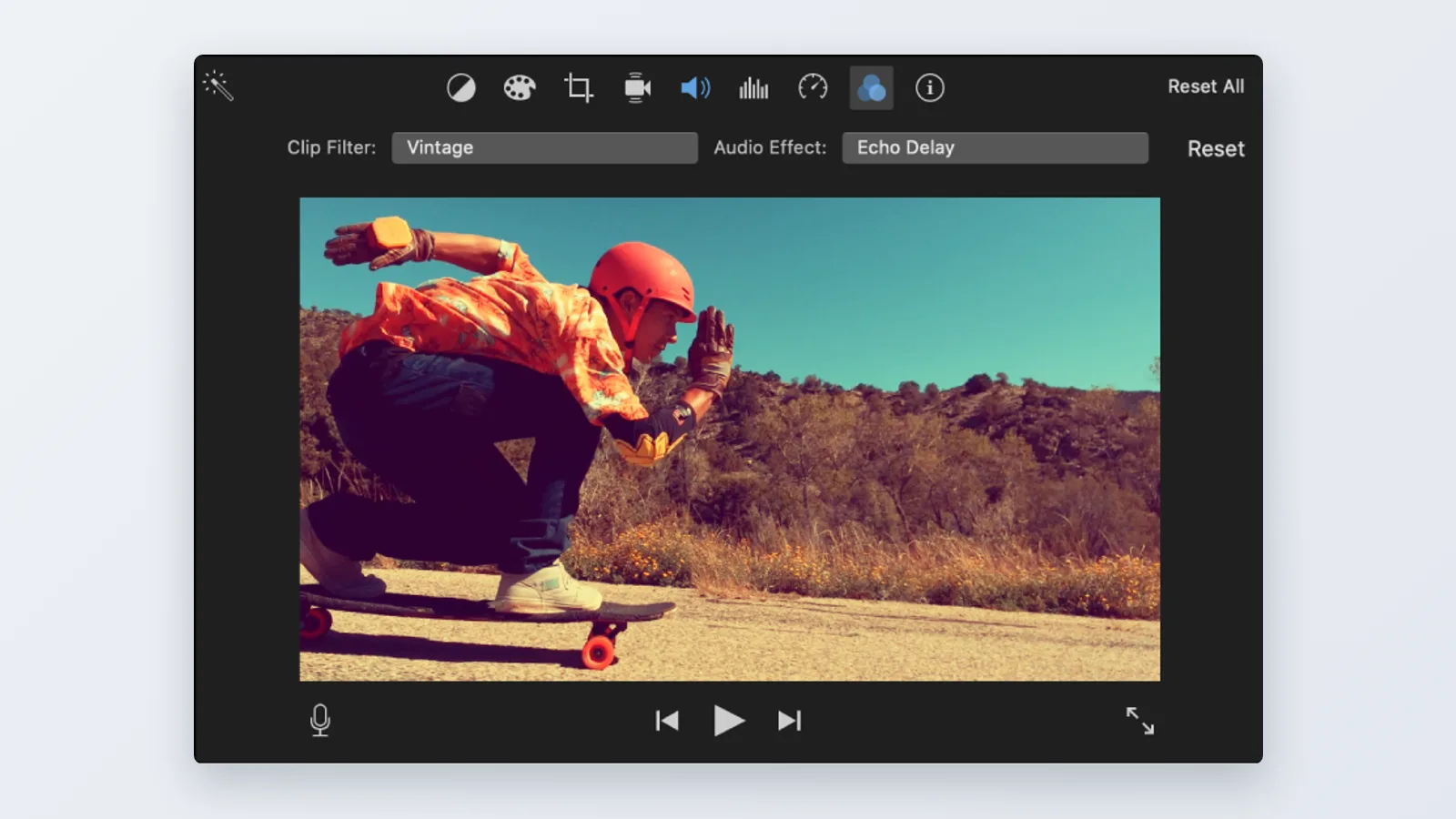
On a Mac, iMovie crops clips by selecting the clip in the timeline and clicking the Cropping button in the adjustments bar, which Apple documents as a way to make footage fit a movie’s aspect ratio. That is the route to take whenever the crop is part of a larger edit with titles, music or multiple clips.
For a single clip you just need reshaped, Photos is faster. Open the video, click Edit, then use the Crop tool and drag the frame to the region you want to keep. Save the change and export a copy rather than overwriting the original.
Watch one thing in iMovie: the project’s own aspect ratio governs the final output. Cropping a clip inside a 16:9 project will not produce a vertical video — it produces a cropped image sitting inside a wide frame. Set the project shape first, then crop each clip to fill it.
Step 4 — Crop a video on iPhone in the Photos app
Time: under two minutes. What you need: the clip saved in your iPhone photo library and enough free storage for the saved copy.
Apple’s iPhone user guide specifies that the Photos crop tool offers standard preset ratios including Square, Wallpaper, 9:16 and 5:7 for both photos and videos. Tap the video, tap Edit, then tap the crop icon at the bottom of the screen. The preset list sits behind the ratio button in the top toolbar.
On iPhone, dragging a corner handle in Photos preserves the clip’s original aspect ratio unless you tap the lock icon at the top right to unlock it, according to Apple Support. That lock is the single most misunderstood control in the whole tool. Unlock it when you want a free-form crop; leave it locked when you only want to zoom into the same shape.
Save the result as a duplicate if you might want the original framing back. Photos keeps a revert option for edits made in place, but a duplicate is safer once the file leaves your phone through AirDrop or an upload.
Step 5 — Crop a video on Android in Google Photos
Time: three minutes, longer on older hardware while the edit renders. What you need: a supported Android device and the Google Photos app updated through the Play Store.
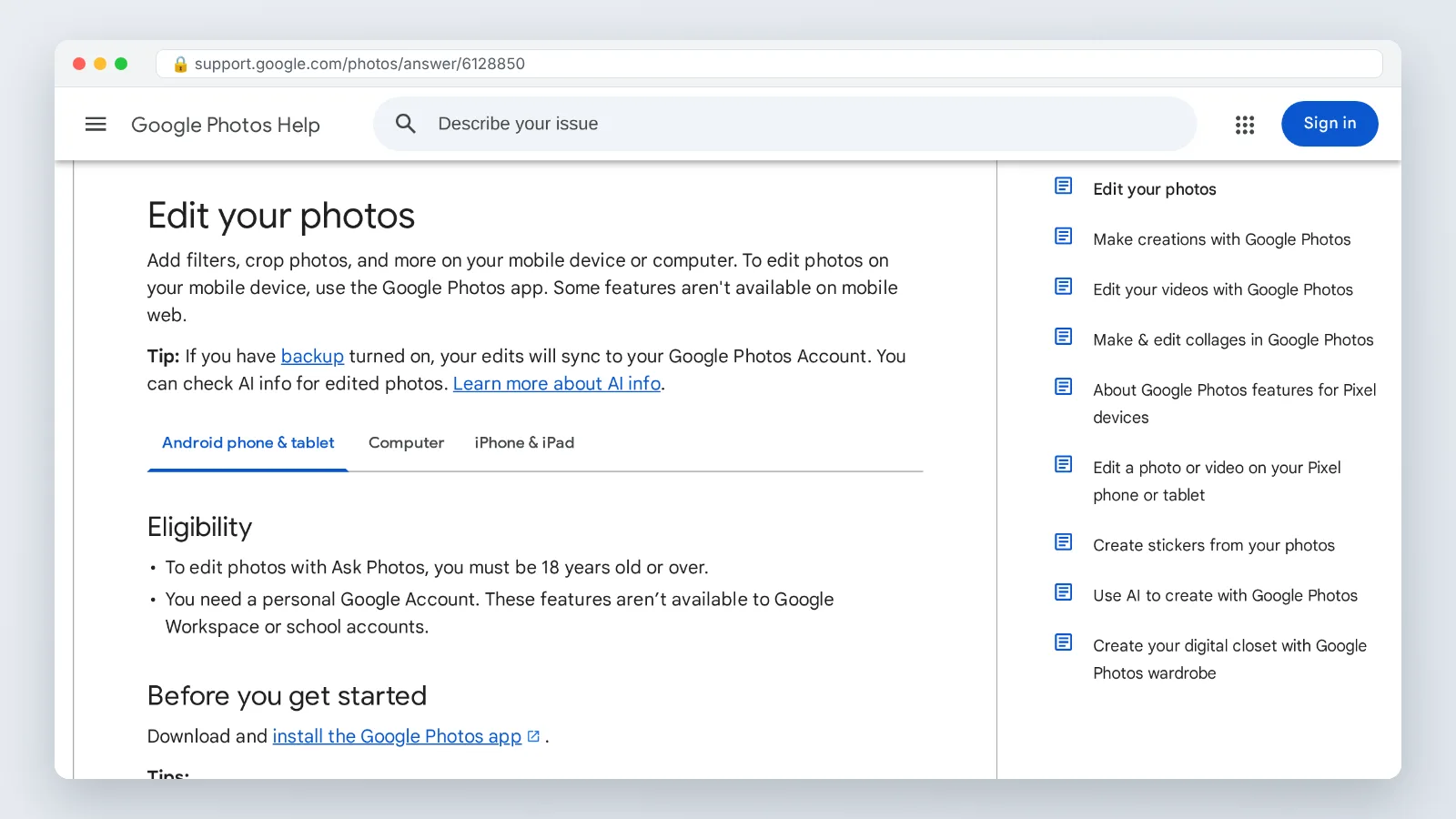
Google requires an Android device with at least 1 GB of RAM running Android 6.0 or later for the crop, straighten and filter tools in the Google Photos video editor, according to Google Photos Help. Google Photos video editing is not supported at all on non-Pixel Android devices running Android 9, per the same help documentation. Check your Android version under Settings before you plan an edit on an older handset.
Open the clip, tap Edit, then tap Crop. Drag the corner handles to reframe, or pick a ratio preset if one matches your Step 1 target. Tap Save copy so the original stays in your library untouched.
Samsung, Xiaomi and other manufacturers ship their own gallery editors with crop tools of their own. Those work too, but their presets and output settings vary by model, so confirm the exported dimensions in the file details afterward.
Pre-export checklist: five settings to confirm before you save
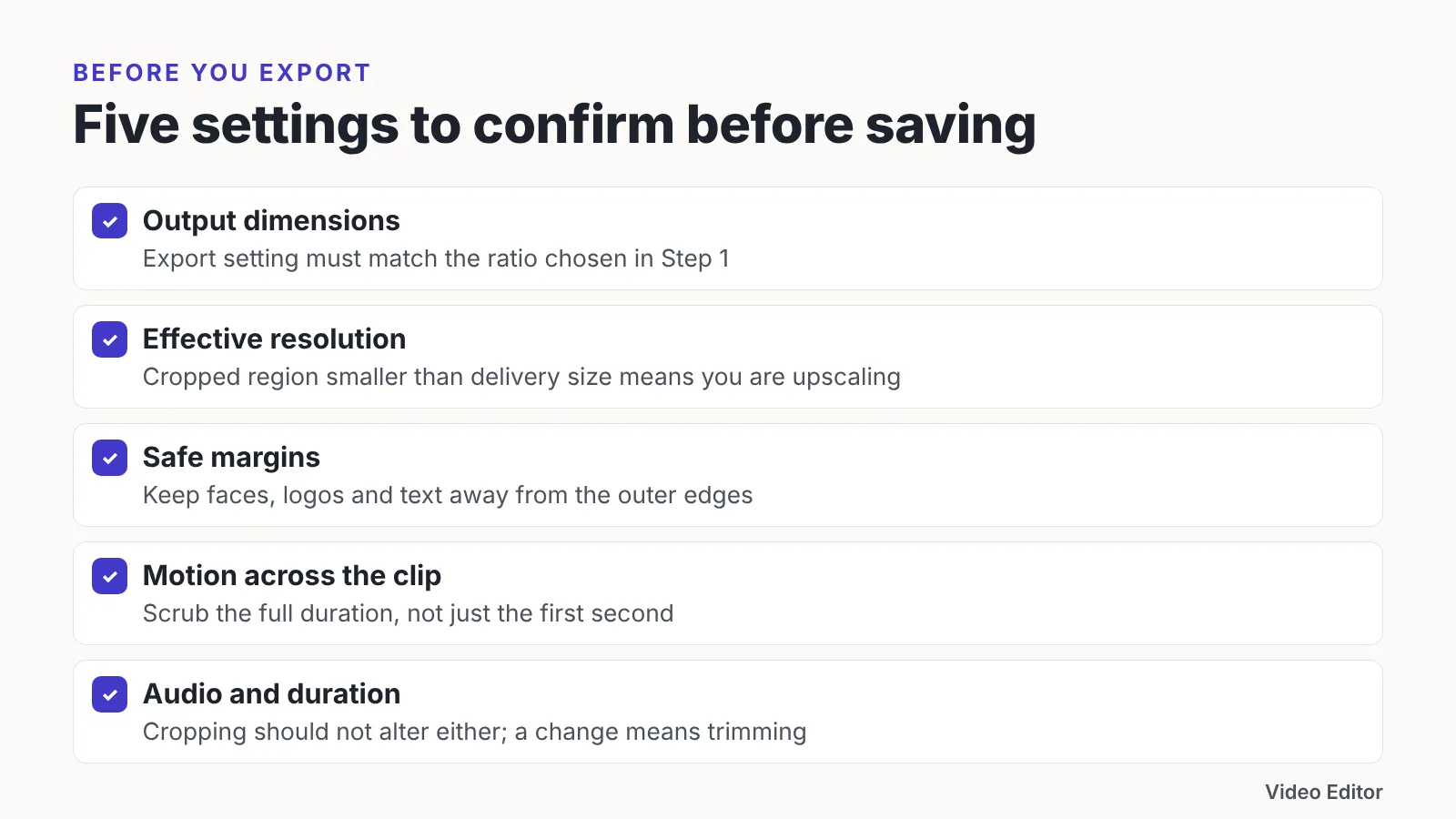
Run these five checks in order. Each one catches a problem that is cheap to fix now and expensive to fix after upload.
- Output dimensions. Confirm the export matches the ratio you chose in Step 1 — not the project preview, the actual export setting.
- Effective resolution. If the cropped region of your source is smaller than your delivery size, you are upscaling; accept the softness or recrop from a higher-resolution master.
- Safe margins. Keep faces, logos and on-screen text away from the outer edges, since vertical feeds overlay captions, profile pictures and buttons on top of your frame.
- Motion across the clip. Scrub the full duration, not the first second, to confirm your subject never walks out of the cropped frame.
- Audio and duration. Cropping should not alter either, so any change here means you trimmed or re-encoded something by accident.
Name the exported file so you can tell it apart from the master at a glance — adding the ratio to the filename works well. Keep the original in place. The next platform you post to will want a different shape, and you will want the uncropped source when that happens.
Common cropping mistakes (and how to fix them)
The most common failure is cropping a clip that has already been cropped and exported once. Quality drops twice, compression artifacts stack, and edges that looked acceptable at 1080p turn blocky. Fix it by going back to the camera original every time and treating each delivery shape as its own export from that master.
The second mistake is looking for a crop tool where there isn’t one. In iMovie on iPhone there is no corner-handle crop tool; Apple’s documented method is tapping the Zoom Control button in the viewer and pinching to reframe the clip, according to Apple Support. Reach for the Photos app instead when you need a real crop on iPhone.
A third one shows up on client work: cropping tightly around a subject’s head so there’s no headroom left. Vertical frames are tall, and a crop that fills the width often cuts a forehead. Leave a margin above the subject and reframe lower.
The last recurring error is cropping before deciding where the video will be published. One source clip can serve a landscape player and a vertical feed, but only if you crop twice from the original rather than once from a crop.
Frequently asked questions
How do I crop a video without losing quality?
Crop from the original camera file, never from a previously exported crop, and make sure the region you keep is at least as large as your delivery size. A 4K source cropped to vertical usually still exceeds 1080 pixels of width; a 1080p source cropped the same way does not and will be upscaled.
Can I crop a video on iPhone without an app download?
Yes. The built-in Photos app handles it, and Apple’s iPhone user guide specifies that its crop tool offers standard preset ratios including Square, Wallpaper, 9:16 and 5:7 for both photos and videos. Tap Edit, then the crop icon, then choose a preset or drag the handles.
Why can’t I crop a video in Google Photos on my Android phone?
Your device may not meet the requirements. Google requires an Android device with at least 1 GB of RAM running Android 6.0 or later for the crop, straighten and filter tools in the Google Photos video editor, and Google Photos video editing is not supported at all on non-Pixel Android devices running Android 9.
What aspect ratio should I crop a video to for vertical platforms?
Nine by sixteen is the standard vertical shape, and the standard crop target for YouTube Shorts is a 9:16 vertical frame at 1080 x 1920 pixels, according to vidIQ. Decide this before you crop, because setting the project ratio afterward leaves black bars at the sides.
Is cropping the same as trimming a video?
No. Cropping removes pixels from the edges of the picture and changes the aspect ratio, while trimming removes seconds from the start or end and leaves the framing exactly as it was. You often need both, in that order, but the tools are separate in every editor covered here.
Sources
- Crop, rotate, flip, or straighten photos and videos on iPhone – Apple Support
- Crop clips in iMovie on Mac – Apple Support
- Adjust zoom effects in iMovie on iPhone – Apple Support
- How to crop videos or images in Clipchamp – Microsoft Support
- Edit your videos – Android – Google Photos Help
- Edit your videos with Google Photos – Android phone & tablet – Google Photos Help
- YouTube Shorts Size & Dimensions: Exact Specs (vidIQ)
Written with AI assistance and fact-checked against the sources cited above before the Video Editor Editorial Team published it.