Mask the text, track it across every frame, then fill the hole with Content-Aware Fill, Patch Replacer or an AI object remover — and patch the few frames the fill gets wrong by hand.
What you can realistically remove from a video — and what you’ll need
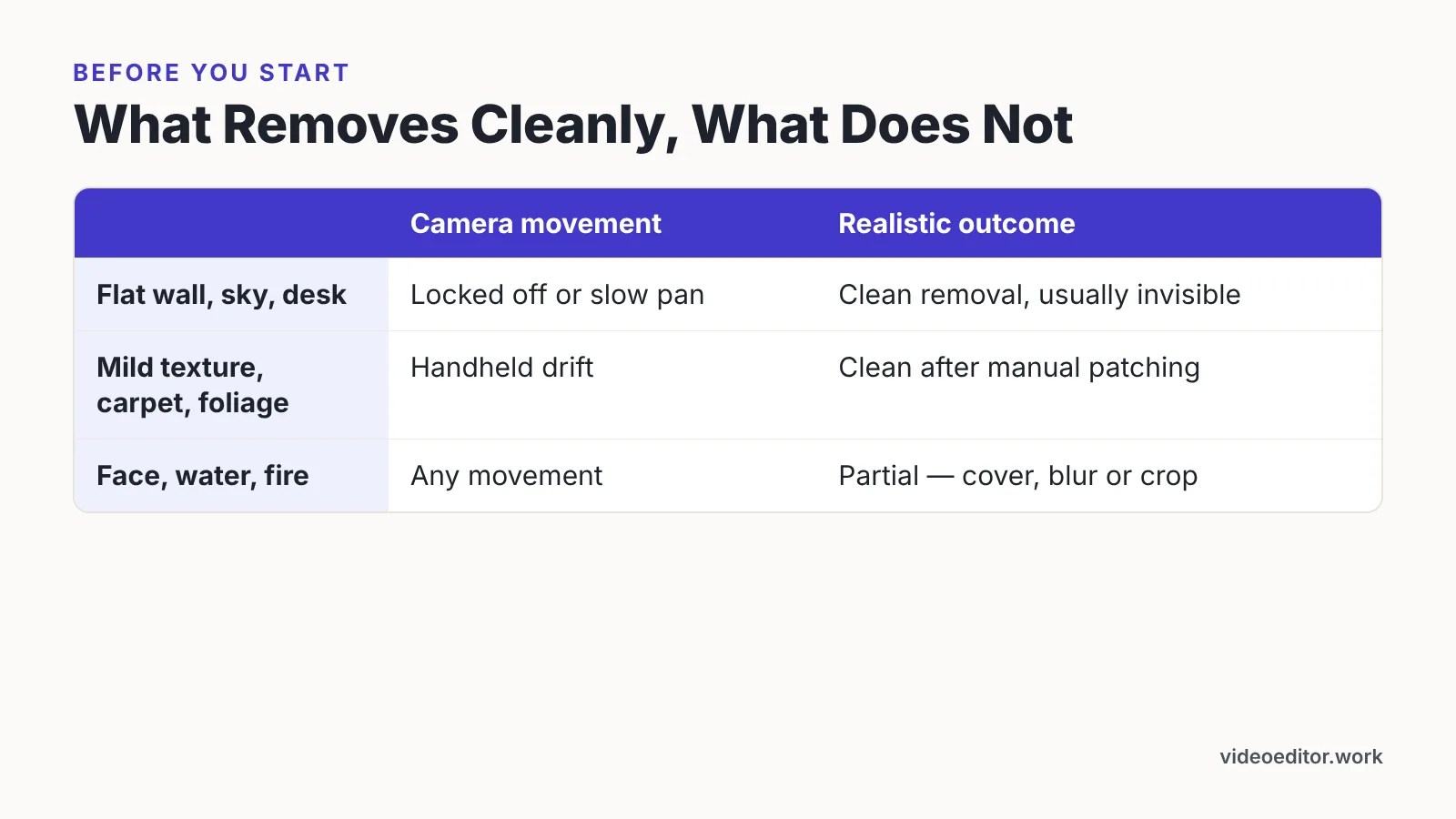
Removal difficulty comes down to one question: can the software see what sits behind the text in some other frame? A lower third over a slow pan is usually recoverable, because those pixels exist a second earlier or later. Burned-in subtitles over fire, water or a turning face often are not.
Static text on a wall, a sky or a tabletop is the easy case. Text that overlaps an eye, a reflection or heavy sensor grain is the hard case, and no tool fixes that invisibly.
| Text sits over | Camera movement | Realistic outcome |
|---|---|---|
| Flat wall, sky, desk surface | Locked off or slow pan | Clean removal, usually invisible |
| Mild texture, carpet, foliage | Handheld drift | Clean after manual patching |
| Face, water, fire, fast motion | Any | Partial — plan to cover, blur or crop |
You’ll need: the highest-quality source file you can get (not a re-download of a compressed upload), an editor or compositor with masking and tracking, a GPU that previews without crawling, and roughly 45–120 minutes for a single short shot. That figure is our editorial estimate, not a measured benchmark: it adds up the per-step times below (45–95 minutes of hands-on work) and leaves room for render and encode time on top.
When the plate is unrecoverable and the clip is your own explainer or talking head, rebuilding beats repairing. A script-to-video platform such as AI Studios can regenerate that segment from the original script, a topic prompt or an uploaded document, which often costs less time than fighting a bad patch all afternoon. Be clear about the trade-off, though: this replaces the original footage with a new segment built around an AI avatar and a synthetic voice rather than repairing what you shot, and export resolution and clip length are capped by plan — the Free plan allows up to 3 videos of up to 1 minute each in 720p, while the Personal plan raises that to 30-minute videos in 1080p.
Step 1 — Confirm your rights and pick the right removal method for your shot
Time: 10–15 minutes. You’ll need: your license, contract or purchase receipt for the footage.
Check ownership before you draw a single mask. Stripping a watermark from stock footage you never licensed doesn’t make the use legal — it stacks a second problem on the first. Rules differ by country; in the United States, stock libraries generally treat watermark removal as a breach of their license terms, and unlicensed use stays infringing either way.
Match the shot to a method before you open any filter:
- Static text, static camera, flat background — a patch or cover filter, no tracking required.
- Static text, moving camera — a tracked mask plus a content-aware fill.
- Animated titles or a scrolling ticker — roto or frame-range masking, then fill.
- Text across a face or detailed motion — cover, blur, reframe, or re-shoot.
Tool choice follows from that. Blackmagic Design lists DaVinci Resolve Studio, the paid tier of its editor, as a one-time purchase at $295. Artgrid reports that upgrading to DaVinci Resolve Studio unlocks more than 30 extra Resolve FX, including Patch Replacer — the filter most often used to cover static on-screen text or a watermark. Blackmagic Design states that the paid Studio version is what adds the DaVinci Neural Engine for automatic AI region tracking plus additional Resolve FX filters.
This is general information, not legal advice; read your license terms or ask a lawyer about your specific footage.
Step 2 — Mask and track the text, logo or watermark
Time: 15–40 minutes per shot. You’ll need: your clip on a timeline and a tracker — planar, mask-based or AI object tracking.
Scrub the full clip and write down the in and out frames where the text is visible. Many watermarks fade in or sit at partial opacity for a few frames at each end, and those half-visible frames are what survive a sloppy mask.
Draw the mask slightly larger than the text itself. A few pixels of margin gives the fill engine room to blend, and a small feather keeps the repaired area from showing a hard rectangular seam.
Track next, then verify backwards. Play the tracked mask from the last frame to the first at quarter speed and watch the mask edge against the moving background — drift shows up far more clearly in reverse.
For animated text, split the clip at the points where motion changes direction and track each piece separately. One continuous track across a whipping camera move almost always slips somewhere in the middle. Lock the mask with keyframes on the frames where the tracker loses confidence.
Step 3 — Fill the gap (Content-Aware Fill, Patch Replacer or an AI object remover)
Time: 5 minutes of setup plus render time. You’ll need: the tracked mask from Step 2 and free disk space for cached fill frames.
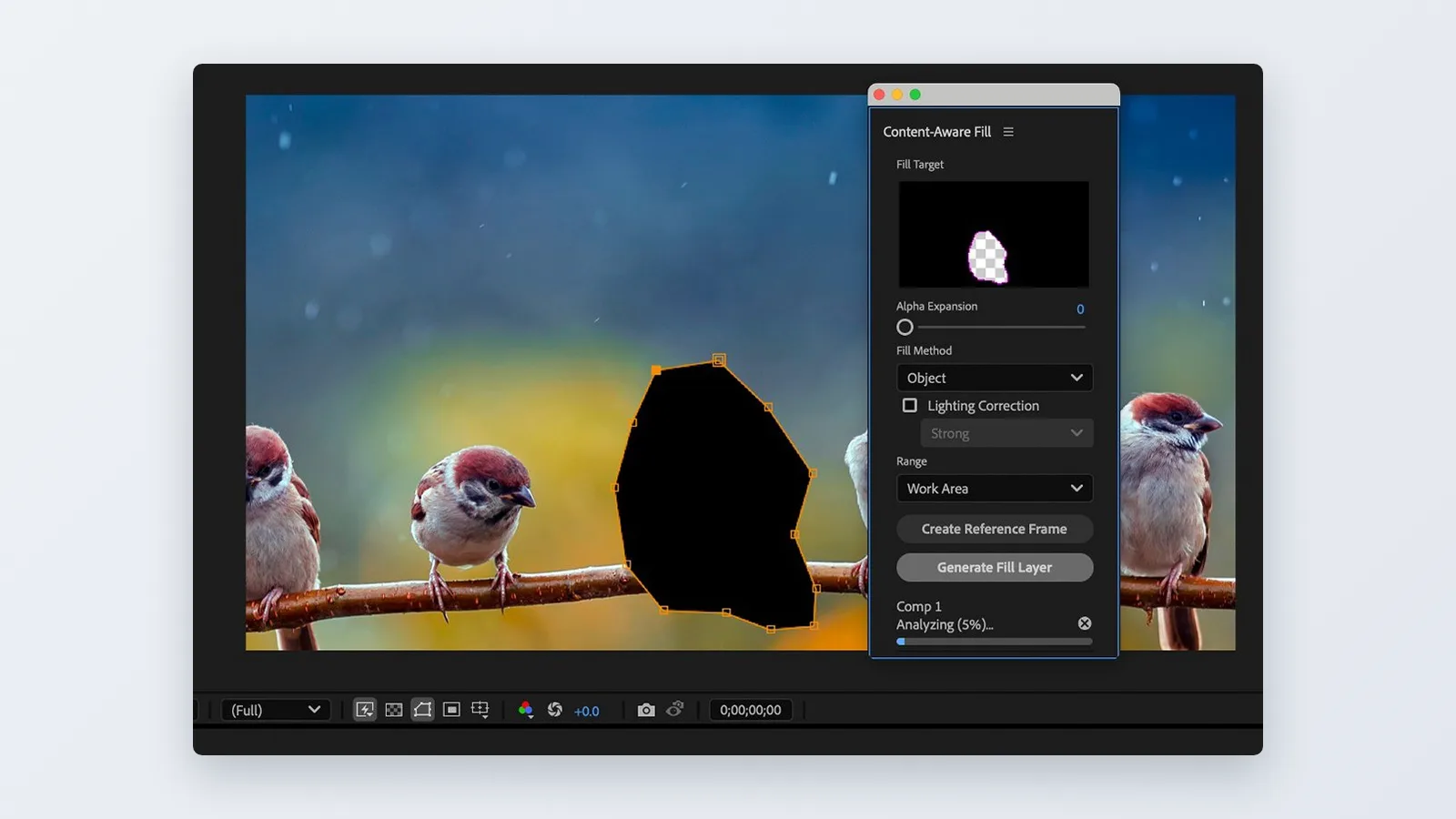
Adobe’s official After Effects documentation describes the Content-Aware Fill workflow as selecting a Fill Method and a Range to analyze, then clicking Generate Fill Layer, which adds a new fill layer above the clip in the timeline. Follow that order exactly — the fill layer is a separate asset you can refine or replace later without re-masking.
After Effects’ Content-Aware Fill panel offers exactly three fill methods: Object, Surface and Edge Blend, according to PremiumBeat. For footage whose background is a flat, low-detail surface — the typical case for a logo, caption or watermark sitting on a wall or screen — Adobe’s own example instructs users to set the Fill Method to Surface and the Range to Work Area.
Plan your render window accordingly. VDCI notes that of the three fill methods, Surface and Object typically take longer to render than Edge Blend, so test a short range before committing the whole shot.
Content-Aware Fill for video arrived in After Effects version 16.1, released in spring 2019, according to Wipster — anything older on your machine won’t have the panel. In Resolve Studio, Patch Replacer handles the same job for static text by sampling a clean donor region nearby.
Step 4 — Clean up edges, lighting and problem frames
Time: 10–30 minutes. You’ll need: a clone stamp or paint tool, a grain tool, and patience at 100% zoom.
A generated fill rarely survives every frame. Step through the repaired range one frame at a time and flag the ones that smear, flicker or show a ghost of the original letterforms. Those frames get fixed by hand, not by regenerating the whole range.
Supply a cleaner reference frame when the fill guesses badly. Pick a frame where the hidden background is most exposed, retouch that single frame properly with clone and paint tools, and feed it back as the source for the fill.
Match grain and light last. A patched region often reads as too clean against the rest of the picture, so add noise that matches the shot’s own grain size and keep the brightness of the patch a hair below the surrounding area. Darker patches hide; brighter patches announce themselves.
Flicker is the giveaway that your fill is being recalculated per frame. Hold a single repaired still over several frames when the background behind the text is genuinely static.
Step 5 — Export without re-introducing artifacts
Time: 5 minutes to configure, plus encode time. You’ll need: a master-quality intermediate codec and your delivery specs.
Export from the original timeline, never from a compressed preview of your own fix. Each re-encode smooths detail, and smoothed detail around a patched area turns into the soft, waxy rectangle viewers notice immediately.
Render a mezzanine first if the clip is going anywhere else — ProRes, DNxHR or another intermediate — then make delivery files from that single master. Patched regions carry subtle gradients that low-bitrate H.264 handles worst, so raise the bitrate above your normal setting for shots containing a fill.
Check your edition’s ceiling before you start. Storyblocks reports that the free edition of DaVinci Resolve caps output at 4K UHD 60fps, while the Studio edition supports up to 32K at 120fps, which matters if your source is high-resolution and you don’t want a downscale baked into the repair.
Keep frame rate and color space identical from source to export. A frame-rate conversion applied after a patch blends repaired frames with unrepaired neighbors and can resurrect a faint edge you already removed.
Pre-export quality checklist
Run this list before you render the final file. Each item catches a failure that is cheap to fix now and expensive to fix after delivery.
- Frame-by-frame pass at 100% zoom across the full repaired range, not just the middle of it.
- First and last frames checked separately — fade-in and fade-out frames of a watermark are the ones most often missed.
- Mask edges inspected on a large display, where soft rectangles and halos appear that a laptop panel hides.
- Grain and noise matched between the patched region and the untouched area beside it.
- No flicker when the clip plays at full speed in a loop of five seconds or more.
- Audio untouched and still in sync after any re-timing or re-rendering.
- Reflections, shadows and mirrors cleared — a logo removed from a wall but still visible in a glass door is a common miss.
- Export settings confirmed: same frame rate, same color space, bitrate raised for patched shots.
- Licensing documented, with the receipt or contract saved alongside the project file.
Common mistakes when removing text from video
The failure that wastes the most time is masking too tightly. An editor traces the exact outline of the letters, the fill engine has no clean pixels to sample from, and the result is a blurred ghost that follows the text’s shape across every frame. Expand the mask a few pixels beyond the glyph edges and add a small feather — the fill then borrows from genuine background rather than from anti-aliased text pixels.
Working from a compressed re-upload is the second trap. Compression artifacts cluster around high-contrast text, so the "background" your tool samples is already damaged before you start.
Tracking once and trusting it ranks third. Verify in reverse, and keyframe the mask manually over any section where the camera accelerates.
Last, skipping the rights check. A beautiful removal on footage you never licensed is still unlicensed footage, and the cleanup effort buys you nothing.
Frequently asked questions
Can you remove text from a video for free?
Yes, for simple cases. Free DaVinci Resolve handles masking and tracking, though Artgrid reports that Patch Replacer is among the more than 30 extra Resolve FX reserved for the paid Studio edition, so free users typically cover or blur instead of filling.
What is the best method for removing a watermark from a static shot?
There are two clean routes, and you should pick one tool rather than mixing them. Option A — DaVinci Resolve Studio Patch Replacer: use a patch or cover filter with no tracking, since the watermark never moves; Artgrid names Patch Replacer as the filter most often used to cover static on-screen text or a watermark, and Blackmagic Design lists Studio as a $295 one-time purchase. Option B — After Effects Content-Aware Fill: Adobe’s example for flat, low-detail backgrounds instructs users to set the Fill Method to Surface and the Range to Work Area, which suits locked-off shots well.
Why does the repaired area flicker after the fill renders?
Flicker means the fill is recalculating slightly differently on each frame. Hold one well-retouched still over the static section, supply a cleaner reference frame to the fill engine, and match grain so the patch and its surroundings share the same noise pattern.
How long does removing text from one clip take?
Budget 45–120 minutes for a single short shot. That is our editorial estimate rather than a measured benchmark, and it breaks down as roughly 10–15 minutes on rights and method, 15–40 minutes masking and tracking, 5 minutes of fill setup, 10–30 minutes of manual cleanup and 5 minutes to configure the export — 45–95 minutes of hands-on work, plus render and encode time on top. VDCI notes that Surface and Object fills typically render longer than Edge Blend.
Does my version of After Effects support Content-Aware Fill for video?
Only version 16.1 and later. Wipster states that Content-Aware Fill for video arrived in After Effects version 16.1, released in spring 2019, so older installations will not show the panel and will need a different approach, such as manual clone painting.
Sources
- Use content-aware fill to remove unwanted objects from your video — Adobe Help Center
- Tutorial: Getting Started with Content-Aware Fill in After Effects — PremiumBeat
- How to Remove Anything with Content-Aware Fill in After Effects — Wipster
- Using a Reference Frame for Cleaner Content Aware Fill in After Effects — VDCI
- Products — Blackmagic Design
- DaVinci Resolve Studio — Blackmagic Design
- What’s the Difference Between DaVinci Resolve Free and Studio? — Artgrid
- DaVinci Resolve free vs Studio: What’s included in each version — Storyblocks
Written with AI assistance and fact-checked against the sources cited above before the Video Editor Editorial Team published it.