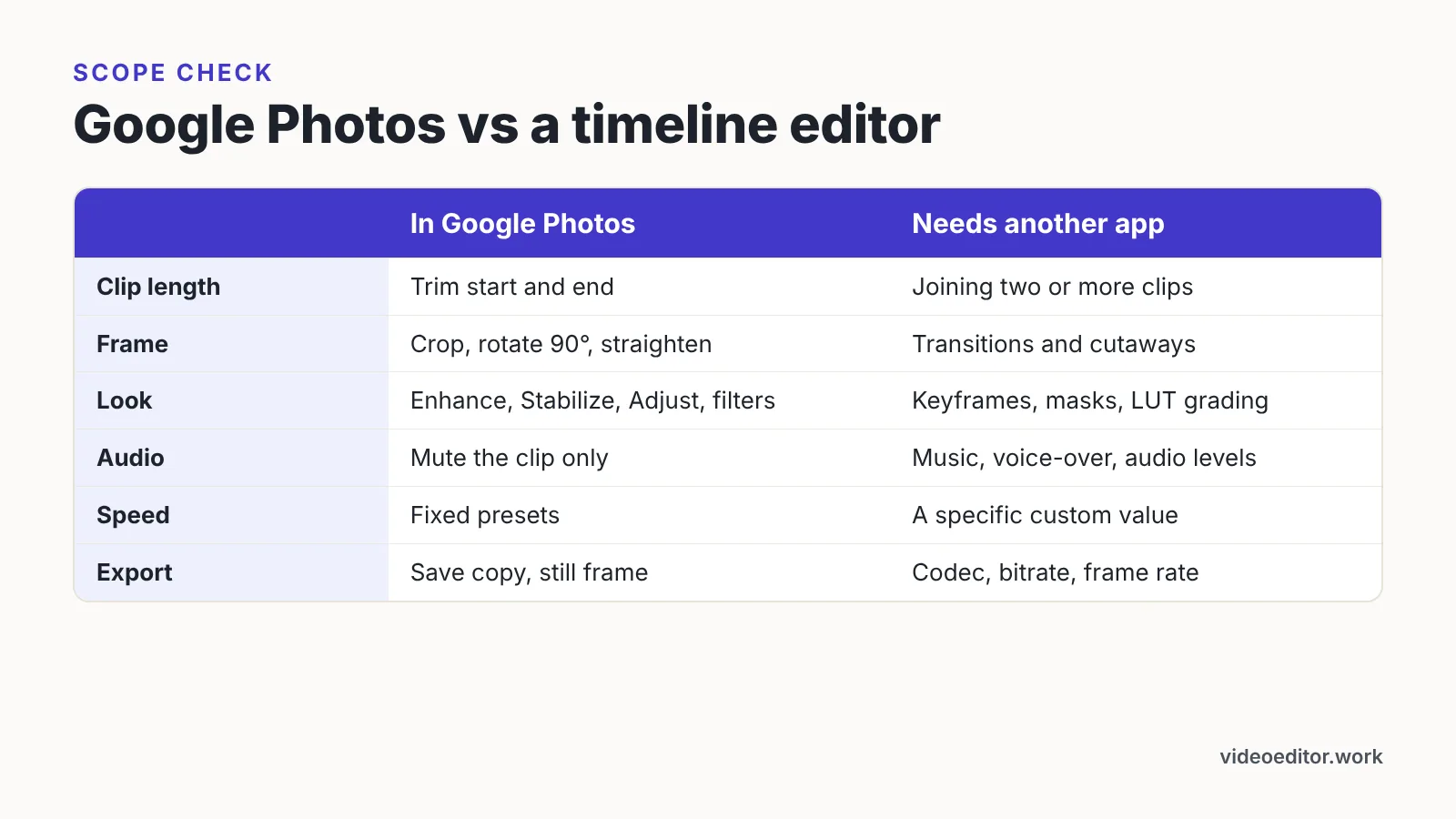
Google Photos edits one clip at a time: trim, crop, rotate, straighten, stabilize, enhance, filters, Adjust sliders, speed presets, mute and still-frame export. Joining clips, text, music and transitions need a separate editor.
What you can actually edit in a Google Photos video (and what you can’t)
Google Photos is a camera roll with a small repair kit bolted on. It works on one clip at a time, in place, with no timeline underneath it. That single design choice explains every limit you will hit.
The pattern is easy to predict. Anything that changes one clip’s frame, exposure, speed or length is built in. Anything that needs two items on a timeline — a second clip, a music track, a title card — is not.
Handled inside Google Photos
- Trimming the start and end of a clip
- Crop, rotate in 90° steps, and straighten
- One-tap Enhance and Stabilize
- Adjust sliders such as brightness, contrast, saturation and warmth
- Filters (the same looks offered for photos)
- Fixed speed presets
- Muting the clip’s audio
- Exporting a single frame as a still photo
Needs a different app
- Joining two or more clips
- Titles, captions, lower thirds, any text on screen
- Music beds, voice-over, ducking, audio levels
- Transitions and cutaways
- Keyframes, masks, LUT-based color grading
- Control over codec, bitrate or frame rate on export
Google Photos Help documents that some editing features are missing from the Google Photos web version and advises switching to the Android or iOS app to find them. Treat photos.google.com in a browser as a viewer and a download point, not as your edit bay.
Step 1 — Open the clip in the Google Photos app and check your device meets the requirements
Time: about two minutes. You need: the Google Photos app signed into your account, the clip stored on the device or backed up, and roughly double the clip’s file size free in local storage for the saved copy.
Open the app, tap the video, then tap Edit. The toolbar that appears is your whole feature set — if a tool is not on that row, the app cannot do it.
What appears on that row depends on your hardware, which catches people out when a friend’s phone shows tools theirs does not. According to Google Photos Help, non-Pixel Android devices running Android 9 cannot access video editing in Google Photos at all. That is not a bug to troubleshoot; it is a documented exclusion.
Google Photos Help states that the video Adjust tools on iPhone and iPad require a device with at least 3 GB of RAM running iOS 16 or later. Check your model and OS version before you plan an edit around sliders you may not have.
One more pre-flight check. Play the clip through once at full length and note the timecodes of the moments you want to keep, because scrubbing a long handheld clip on a small trim bar is imprecise and you will lose your place.
Step 2 — Trim the clip, then crop, rotate or straighten the frame
Time: three to five minutes per clip. Trim first, always. Cropping and straightening a thirty-second clip when you only need eight seconds of it wastes processing time and makes the preview stutter.
Drag the handles at each end of the filmstrip inward. Give yourself about half a second of padding on both sides of the action — tight trims look clipped once the file is posted and the platform adds its own compression and start lag.
Move to the Crop tool next. You get a rectangle you can drag, fixed aspect ratios including square and 16:9, 90° rotation, and a straighten dial for horizons that lean.
According to Google Photos Help, the crop, straighten and filter tools for video require an Android device with at least one GB of RAM running Android version 6.0 or later. If your Android phone sits below that line, crop the frame in a third-party app instead and bring the result back into your library.
Two cautions on cropping. Every crop throws away pixels, so a 1080p clip cropped to a vertical slice is noticeably softer than a clip shot vertically. Straightening crops as well, because the frame has to rotate inside the rectangle.
Step 3 — Fix the look with Enhance, Stabilize and the Adjust sliders
Time: two to four minutes. Start with the single-tap options before you touch a slider, since they often get you most of the way there and cost nothing but one tap to undo.
Enhance applies an automatic exposure and contrast correction. It suits flat, slightly underexposed indoor footage and overcooks clips that were already bright.
Stabilize reprocesses handheld shake. It crops in a little to do that, and it struggles with walking shots where the camera also rotates, so re-watch the full clip after it finishes rather than judging the first second.
The Adjust panel is where exposure, contrast, highlights, shadows, saturation and warmth live. Google Photos Help states that the Adjust panel of effects and filters for video on Android needs a device with at least 3 GB of RAM and Android 8.0 or newer, which is a higher bar than crop and straighten require on the same platform.
Use small moves. Push contrast and saturation hard on a phone screen and the clip will look harsh on a laptop, because phone displays are brighter and more saturated than most monitors.
If a clip needs selective work — brightening a face while leaving the sky alone — stop here. Google Photos adjusts the whole frame, with no masks and no keyframes, so a mixed-light interview will fight you.
Step 4 — Handle sound, filters, speed and exporting a still frame
Time: one to three minutes. Audio control in Google Photos has exactly two states: on and off. Tap the speaker icon to mute the clip entirely.
There is no volume slider, no fade, no noise reduction and no way to add music. A clip with wind roar either goes out muted or goes to another app.
Speed is similarly fixed rather than freeform. Google Photos Help lists the iPhone and iPad speed tool as offering only 2x or 4x to speed up and ¼x or ½x to slow down, with no custom value in between.
Slowing footage that was shot at a standard frame rate produces visible judder, because the app repeats frames rather than generating new ones. Slow motion looks right only when the clip was recorded in a high-frame-rate mode to begin with.
Filters behave like the photo filters and apply across the whole clip at one strength. They are a styling choice, not a correction tool — fix exposure in Adjust first, then decide whether a filter still adds anything.
To pull a still, pause on the frame you want and use the Export frame option. The result saves as a photo at the video’s frame resolution, so a 1080p clip gives you a roughly two-megapixel image — fine for a thumbnail, thin for print.
Step 5 — Save a copy, check backup quality and keep the original
Time: under a minute, plus processing. Choose Save copy rather than overwriting. The original stays in your library untouched, which matters because Google Photos video edits are flattened into the new file and cannot be unwound later.
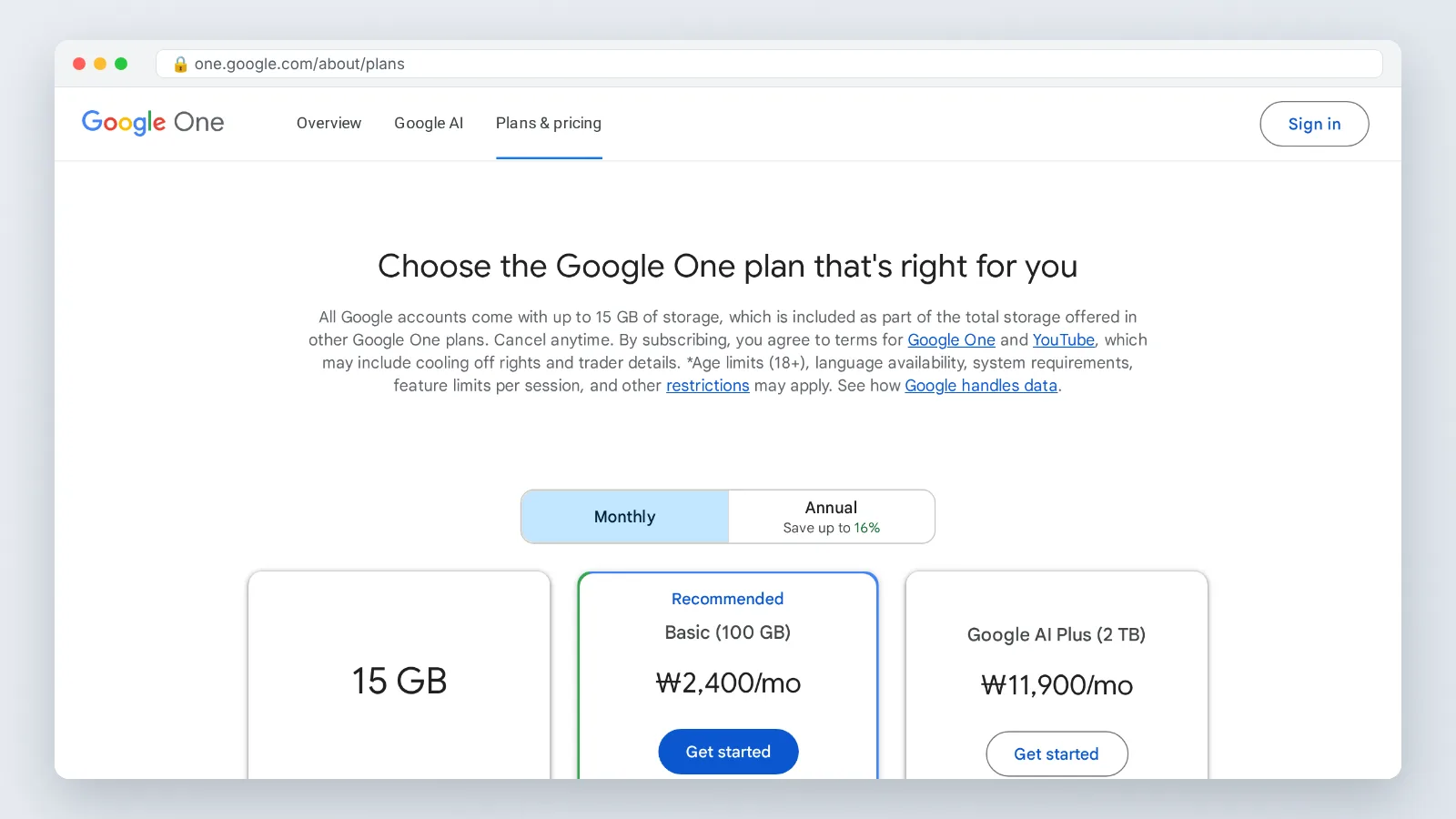
The copy is a full second file, not a set of instructions, so it occupies real storage in your account. Google Photos Help notes that every Google Account includes up to 15 GB of storage shared across Google services, and your edited copies count against that same pool.
Size and format limits apply to what syncs back. Google Photos Help states that the service backs up videos up to 10 GB in size and requires items to be larger than 256 x 256 pixels.
Format matters too. Google Photos Help lists the supported video types for backup as including .mp4, .mov, .avi, .wmv, .mts and .mkv, so a file outside that list has to be converted before it will upload.
After saving, open the copy and watch it end to end at full screen. Processing occasionally produces an audio drift or a stutter at a trim point, and the moment to catch that is before you share it, not after.
Pre-export checklist for Google Photos video edits
Run this before you hit save on anything that leaves your phone. Each line takes seconds and catches the errors that are expensive to fix later.
- Trim boundaries: roughly half a second of padding at both ends, no clipped words at the cut
- Orientation: the frame is upright and the horizon is level after straightening
- Aspect ratio: matches where the clip is going — vertical for Stories and Shorts, 16:9 for a site embed
- Stabilize result: watched in full, no warping on vertical lines, crop still acceptable
- Exposure: checked on a second screen if possible, not only on a bright phone display
- Audio: deliberately muted or deliberately kept, with no half-second of noise at the head
- Speed: slow motion only on footage recorded at a high frame rate
- Save method: Save copy selected, original confirmed still present in the library
- File size and format: within the 10 GB backup ceiling Google Photos Help documents, and in a supported type
- Final playback: the saved copy watched once at full screen, start to finish
The second-screen check deserves emphasis. Phone displays flatter footage, and a clip that looks rich on an OLED panel can land muddy on a colleague’s laptop. If you have no second screen, drop screen brightness to about half and look again.
Store the original somewhere you can find it by date, not by filename. Re-editing from the untouched source always beats re-editing an already-compressed copy.
Common mistakes — and when to move the clip to a real editor
The most common failure is stacking edits on an edited copy. Someone trims a clip, saves a copy, decides the crop was wrong, then crops the copy and saves again — each pass re-encodes, and the third version shows blocky shadows and mushy motion. Edit once from the original, every time.
Close behind it: expecting Google Photos to join two clips. There is no join, no transition and no second track, so a two-shot sequence is not a Google Photos job no matter how short it is.
Move the clip to a dedicated editor when any of these are true:
- You need more than one clip in the finished piece
- The video needs text, captions, a logo or an end card
- Music, voice-over or audio balancing is required
- Different parts of the clip need different exposure or color
- You need control over export resolution, bitrate or frame rate
- Speed must land on a specific value rather than a preset
Google Photos still earns its place in that workflow. Use it for the fast, single-clip fixes you do on a phone minutes after shooting, then hand anything with structure to a timeline editor on a laptop.
One honest caveat about planning around features: tool availability shifts with device requirements, and Google Photos Help spells out separate RAM and OS thresholds for Android and iOS. Check your own toolbar before you promise a client a turnaround on a phone edit.
Frequently asked questions
Can you merge two videos in Google Photos?
No. Google Photos edits one clip at a time with no timeline, so there is no way to join clips, add a transition or place a second track. Use a dedicated editor for any sequence with more than one shot.
Why is the Adjust panel missing from my Google Photos video editor?
Device requirements are the usual cause. Google Photos Help states the Android video Adjust panel needs at least 3 GB of RAM and Android 8.0 or newer, and the iPhone and iPad version needs 3 GB of RAM with iOS 16 or later.
Does editing a video in Google Photos ruin the original file?
Not if you choose Save copy, which writes a new file and leaves the source untouched. The edit is flattened into that copy, so you cannot reverse a trim or crop later — always re-edit from the original instead.
Can I edit videos in Google Photos on a computer browser?
Only partly. Google Photos Help documents that some editing features are missing from the web version and advises switching to the Android or iOS app to find them, so treat the browser as a place to view and download.
What size and file types can Google Photos back up after I edit a clip?
Google Photos Help states that videos up to 10 GB back up and items must be larger than 256 x 256 pixels, with supported types including .mp4, .mov, .avi, .wmv, .mts and .mkv. Edited copies also count against your 15 GB shared Google Account storage.
Sources
- Edit your videos with Google Photos – Android – Google Photos Help
- Edit your videos with Google Photos – iPhone & iPad – Google Photos Help
- Back up photos & videos – Computer – Google Photos Help
- Choose the backup quality of your photos & videos – Android – Google Photos Help
- Edit your photos – Computer – Google Photos Help
Written with AI assistance and fact-checked against the sources cited above before the Video Editor Editorial Team published it.