Pacing, clean audio, consistent color, steady framing and a correct export spec account for most of the gap between amateur and professional work — and they work best in that order: cut for pace first, then clean the audio before color and titles, with correction before grading.
Which Video Editing Tips Actually Make the Biggest Difference to How Professional a Video Looks?
Bad footage is rarely the reason an edit feels amateur. Finishing is. A handheld shot with clean dialogue, matched color and tight pacing reads as a deliberate style; a tripod-locked 4K interview with hissy audio and one green-tinted cutaway reads as a mistake.
Rank your effort by what a viewer’s eye and ear catch in the first ten seconds. That ranking almost never matches the order editors work in, which is why so many edits get transitions and lower thirds before they get a proper audio pass.
| Technique | What the viewer actually notices | Rough time on a five-minute edit |
|---|---|---|
| Pacing and trims | Sentences that drag, pauses that feel dead | 45–90 minutes |
| Audio cleanup and levels | Hiss, room echo, dialogue that jumps in volume | 30–60 minutes |
| Color correction and matching | Shots that shift from warm to blue between cuts | 20–40 minutes |
| Stabilization, reframing, titles | Drifting handheld, text cropped on a phone | 15–30 minutes |
| Export settings | Stutter, softness, black bars | 5–10 minutes |
Wistia’s 2026 State of Video Report is based on an analysis of more than 13 million videos uploaded to its platform, which makes its engagement figures a reasonable sanity check when you argue with yourself about length. Work through the five steps below in order. Each one assumes the previous one is finished.
Step 1 — Cut for Pace: Motivate Every Edit and Trim the Dead Air
Time: 45–90 minutes per five minutes of finished video. You’ll need: a transcript of your footage, the ripple-delete and blade shortcuts mapped to keys you can reach without looking.
Every cut should answer a question the viewer has just started asking. Someone points off-screen, so you cut to what they’re pointing at. A speaker finishes a claim, so you cut to the evidence. Cuts that exist because the shot got boring are the ones that feel random.
Build the spine first with a rough assembly of dialogue only, then remove filler. Strip the "um," the false start, the two-second inhale before the answer, and the half-second of silence at the head and tail of every take. A five-minute assembly routinely loses forty seconds to that pass alone.
Videos under one minute long average a 52% engagement rate, according to Wistia, meaning viewers typically watch about half of them. Length punishes you, so cut whole sections rather than shaving frames off a section that shouldn’t exist.
Use J-cuts and L-cuts to hide the joins. Let the audio from the next shot start a beat before the picture changes, or hold the outgoing audio a beat after. The edit stops feeling like a chop and starts feeling like a conversation.
Step 2 — Fix the Audio Before You Touch the Picture
Time: 30–60 minutes per five minutes of finished dialogue. You’ll need: closed-back headphones you know the sound of, a loudness meter in your NLE, and the original unprocessed audio files.
With the structure locked, clean the sound before you spend any time on color or titles. Work in this order and resist the urge to jump ahead:
- Clean. One light noise-reduction pass on hum and hiss — heavy reduction makes voices sound underwater.
- Shape. A high-pass filter around 80–100 Hz on speech removes rumble without thinning the voice.
- Control. Gentle compression catching only the loudest peaks, aiming for a few decibels of gain reduction.
- Level. Match every speaker and every take to the same perceived loudness before you add music.
- Balance. Set music low enough that you can still hear consonants clearly, then duck it further under dialogue.
EBU R 128 recommends normalizing program audio to an integrated loudness of −23 LUFS, with a tolerance of ±0.2 LU (±1 LU for live programs) and measurement using a relative gate at −10 LU. EBU R 128 also sets a maximum true-peak ceiling of −1 dBTP, so a mix peaking above that is out of spec and risks distortion once a platform re-encodes it.
The standard is not new or experimental. The EBU first published R 128 in August 2010 and, as of November 2023, it stood at version 5.0. Even if you publish online rather than to broadcast, hitting a consistent integrated loudness across your whole channel is the single fastest way to stop sounding like a hobbyist.
Step 3 — Correct First, Grade Second: Make Color and Exposure Consistent
Time: 20–40 minutes per five minutes of video. You’ll need: scopes (waveform and vectorscope), one reference frame you consider correct, and a calibrated or at least neutral display.
Correction and grading are different jobs. Correction makes every shot look like it was filmed in the same room at the same moment: neutral whites, skin tones landing on the vectorscope’s skin line, highlights that don’t clip on the waveform. Grading is the look you apply after that — the teal shadows, the lifted blacks, the warm midtones.
Start with your hero shot. Fix white balance, then exposure, then contrast, then saturation, judging by scopes rather than by eye alone, because your eyes adapt to a color cast within about a minute of staring at it.
Match every other shot to that hero frame before you apply any look. Put two clips side by side, flick between them, and adjust the second until the cut stops announcing itself. A LUT dropped onto unmatched footage exaggerates the mismatch instead of hiding it.
Blackmagic Design sells DaVinci Resolve Studio, the paid version of its editing and grading software, for $295, and the free version already includes full primary and secondary correction tools. Budget is not the reason an edit has inconsistent color. Sequence is.
Step 4 — Stabilize, Reframe and Keep Text and Titles Readable
Time: 15–30 minutes, plus render time for stabilization. You’ll need: headroom in your resolution (4K source on a 1080p timeline gives you room to crop), and a phone to check titles on.
Stabilization always costs you frame. The software crops in to hide the wobble, so shoot wider than you need and stabilize before you set final framing. If a shot is so shaky that stabilizing warps straight lines into jelly, cut it short or cover it with a b-roll insert rather than fighting the algorithm.
YouTube states that the standard aspect ratio for desktop viewing is 16:9, so decide early whether a project is landscape-first or vertical-first. Reframing a 16:9 interview into a 9:16 crop works when the subject sits off-center in the original; it fails when two people share the frame.
Text rules that hold up on a phone screen:
- Keep titles inside the inner 80% of frame, away from platform UI overlays at the bottom and right.
- Hold every title long enough to read it aloud twice, slowly.
- Use a solid or semi-transparent backing plate when text sits over moving footage.
- Pick one typeface and two weights for the whole video, not one per title.
- Check contrast by squinting at the screen — if the text disappears, so does it on a bright commute.
Step 5 — Export to the Right Spec for the Platform You’re Publishing On
Time: 5–10 minutes of setup, plus export time. You’ll need: your project’s source frame rate written down, and enough disk space for a master file you keep.
Export a high-quality master first, then derive platform versions from it. Re-encoding an already-compressed upload for a second platform stacks compression artifacts on top of each other, and the banding shows up in gradients like skies and studio backdrops.
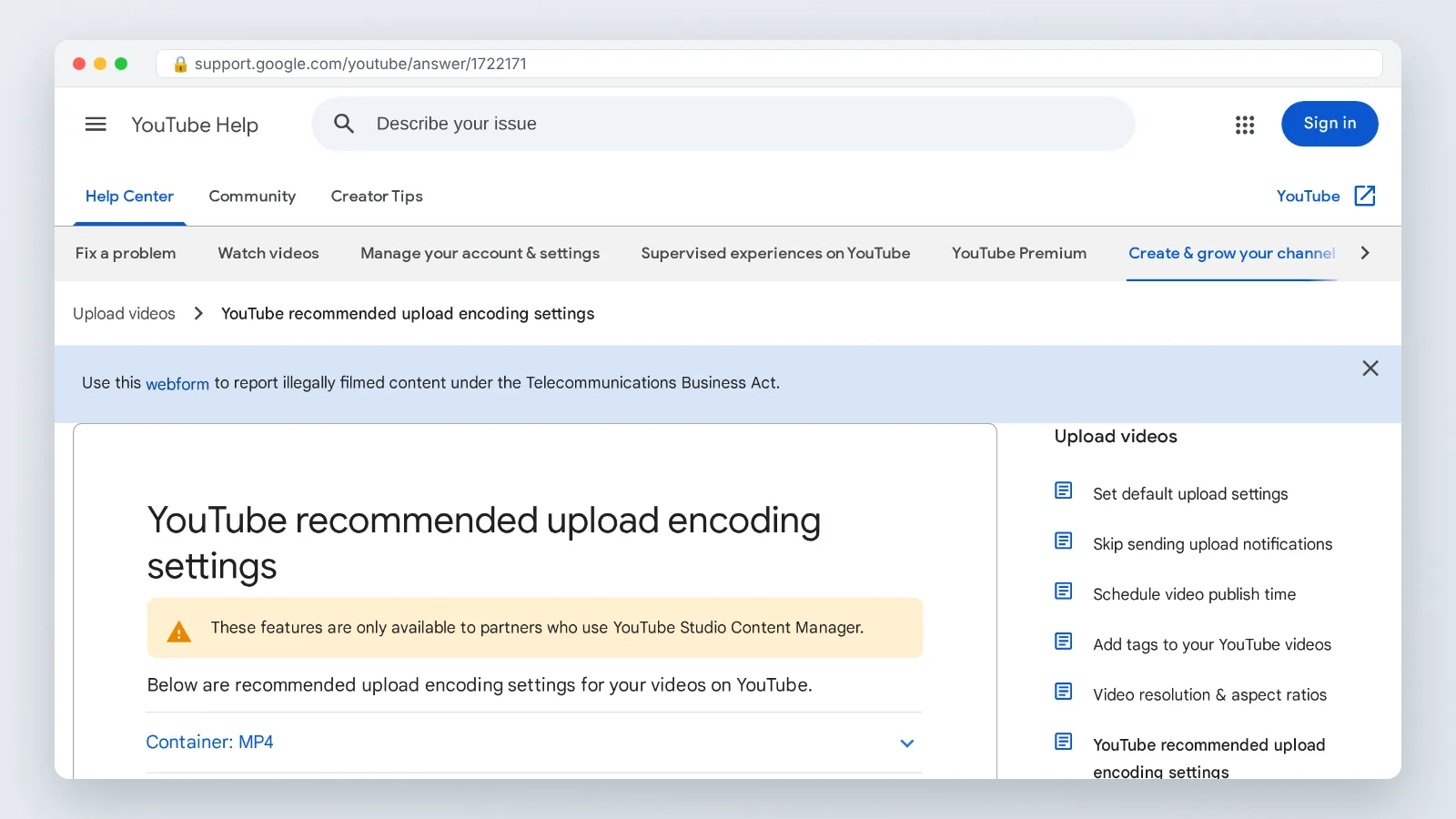
YouTube tells uploaders to keep the frame rate the footage was shot at, listing 24, 25, 30, 48, 50 and 60 fps as common rates, so resist the habit of converting everything to 30. YouTube also requires interlaced footage to be deinterlaced before upload — for example, 1080i60 should be delivered as 1080p30 — which matters if you’re working with older camcorder or broadcast archive material.
Set your sequence to match your source before you start editing, not at export. Changing frame rate at the end forces the encoder to blend or drop frames, and motion picks up a faint stutter that no amount of sharpening fixes.
Name the file so you can find it in six months: project, version, aspect ratio, date. A folder of files called "final_final_2" is a small problem now and an expensive one later.
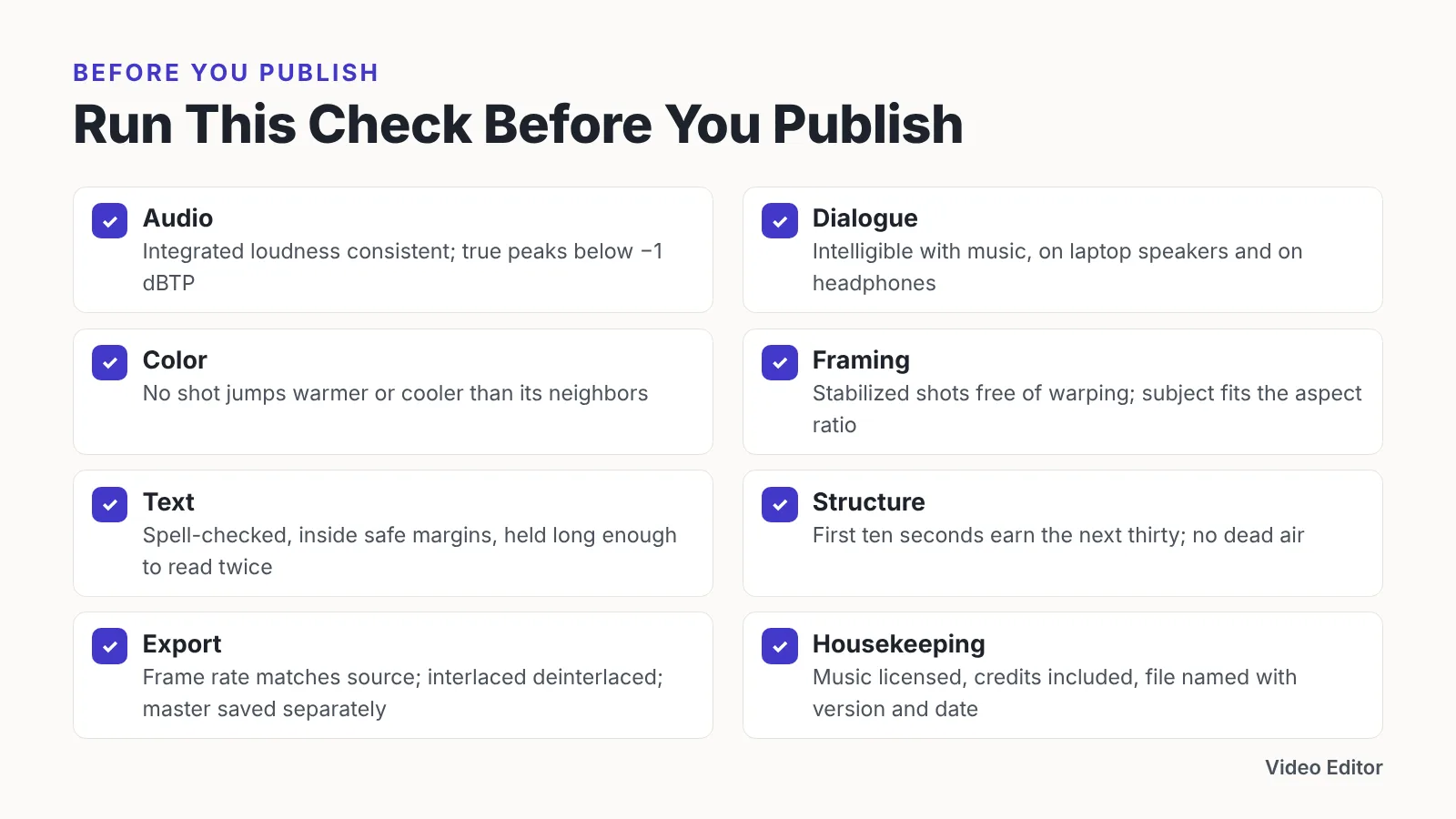
The Pre-Export Checklist: Run Through This Before You Publish
Play the whole timeline once, top to bottom, with no scrubbing. Most catchable errors — a missing title, a frame of black, one clip that never got color-matched — survive because nobody watched the edit as a viewer would.
Then work the list:
- Audio: integrated loudness consistent across the whole timeline, true peaks below −1 dBTP, no clip left unprocessed.
- Dialogue: every speaker intelligible with music playing, checked once on laptop speakers and once on headphones.
- Color: no shot that jumps warmer or cooler than its neighbors; skin tones consistent for the same person throughout.
- Framing: stabilized shots free of warping, subject positioned for the aspect ratio you’re publishing in.
- Text: all titles spell-checked, inside safe margins, held long enough to read twice.
- Structure: first ten seconds earn the next thirty; no dead air longer than a beat.
- Export: frame rate matches source, interlaced material deinterlaced, master file saved separately from platform versions.
- Housekeeping: music licensed, credits included, file named with version and date.
Do this once and it takes ten minutes. Skip it once and you’ll re-upload, losing whatever early engagement the platform gave you.
Common Mistakes That Make an Edit Look Amateur
The most common failure is music mixed at the same loudness as speech. The editor sets the music level while the room is quiet and their attention is on the picture, then never checks the balance with fresh ears. Viewers on phone speakers hear a wall of sound with a voice somewhere inside it.
Avoid it with a two-minute test: mute the music, set dialogue to your target loudness, then bring music up from silence until you can just feel it. That level is almost always lower than the one you’d set by taste.
Other habits that give an edit away:
- Transitions doing the work of a cut. Cross-dissolves between every shot signal that the cuts were not motivated in the first place.
- Grading before correcting. A look applied to mismatched shots amplifies the mismatch instead of unifying it.
- Over-sharpening. Halos around edges look crisp on a monitor and ugly after platform compression.
- Speed ramps with no reason. A ramp should follow an action — a jump, a turn, an impact — not decorate a static shot.
- Ignoring the first three seconds. A logo sting before the hook costs you the viewers you worked hardest to get.
Fix the order of operations and most of these disappear on their own.
Frequently asked questions
What loudness should I mix my video to?
EBU R 128 recommends normalizing program audio to an integrated loudness of −23 LUFS with a tolerance of ±0.2 LU, and caps true peaks at −1 dBTP. Whatever target you choose for online work, consistency across your whole channel matters more than any single number.
Should I edit audio or picture first?
Cut for pace first, then clean the audio before you move on to color and titles. Locking the structure means you are not spending time cleaning up dialogue you later delete, and finishing the sound before grading and titling keeps picture polish from masking hiss, echo or dialogue that jumps in volume between takes.
Do I need paid software to get professional-looking color?
No. Blackmagic Design sells DaVinci Resolve Studio for $295, but the free version already includes primary and secondary correction tools, scopes and node-based grading — enough to match every shot in a typical interview or product video.
What frame rate should I export at for YouTube?
YouTube tells uploaders to keep the frame rate the footage was shot at, listing 24, 25, 30, 48, 50 and 60 fps as common rates, and requires interlaced material to be deinterlaced first — 1080i60 should be delivered as 1080p30.
How long should my video be?
Shorter than you think. According to Wistia’s data, videos under one minute long average a 52% engagement rate, meaning viewers typically watch about half of them, so cut whole sections rather than shaving frames off material that should not exist.
Sources
- Loudness | EBU Technology & Innovation
- Loudness Normalization in Accordance with EBU R 128 Standard — MathWorks Documentation
- Loudness (PLoud) | EBU Technology & Innovation
- YouTube recommended upload encoding settings – YouTube Help
- DaVinci Resolve – Studio | Blackmagic Design
- How to Choose the Right Marketing Video Length for Any Goal | Wistia
Written with AI assistance and fact-checked against the sources cited above before the Video Editor Editorial Team published it.